
Many CRMs feature a centralized Candidates page that aggregates all candidates and responses across every position into a single dashboard. While this offers a broad view, it often makes reviewing applicants for multiple roles in one session overwhelming and less efficient. Each position may demand a unique approach to screening and evaluation. Leadline is designed to keep candidate submissions organized by position, allowing you to focus on the specific requirements of each role. The 'Candidates' page functions as a talent pool, enabling you to easily identify and access potential candidates for future opportunities.
What information is displayed in the Candidates Page?
All candidates you have access to will appear in the table
Note: Your ability to view candidates may be restricted based on your permissions, allowing access only to those associated with positions where you are a collaborator or part of an assigned workflow. For further clarification on your roles and candidate permissions, please consult your company administrator. Company Administrators by default have access to all candidates within the database.
The candidate information available to you includes:
- Name
- Phone Number
- Status
- Tags
You will also notice tabs at the top of the table and an 'Add View' button.
What are Views?
In the past, we referred to the feature as "Saved Search" for storing a list of candidates in the CRM using a set of predefined filters. This feature has now been rebranded as 'Views'. You can have as many or as little views as you would like. For this example, lets create a view displaying candidates in the Los Angeles Area that are Substitute Teachers using the tags filter.
How Do I Create a View?
To create a new view, click the 'Add View' Button and give it a name. For the example above, we will label it "Substitutes - Los Angeles".
Note: When creating a new view, there are no filters applied to the view so the UI wont look any different from the 'All Candidates' view.
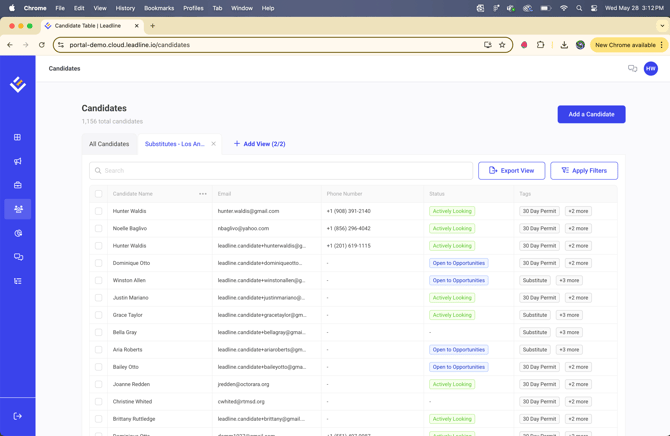
How Do I Add Filters to a View?
Select the 'Apply Filters' button to start applying filters, which will open the drawer displaying both available and active filters. You will see a list of the following available filters:
- Status - Display candidates by specific status (Actively Looking, Open to Opportunities, etc.)
- Tags - Display candidates with specific tags assigned
- Employer - Display candidates with a specific employer assigned
- Favorites - Display candidates marked as favorite only
- Source - Display candidates that entered the database from a specific source (indeed, company website, referral program, etc.)
- Referral Program - Display candidates that entered the database from a specific referrer from within a referral program
- Applied Positions - Display candidates that have applied to specific positions.
- Applied to Positions in Select Locations - Display only candidates who applied to positions in selected locations.
Additional filters are on the way! Should you wish to request the addition of specific filters, please reach out to your customer success representative.
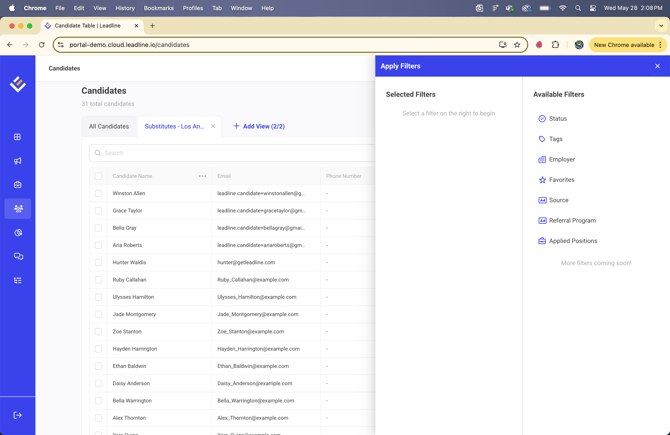
For the above example, we are going to filter by tags that contain any relevant information for Substitute Teachers in the Los Angeles Area.
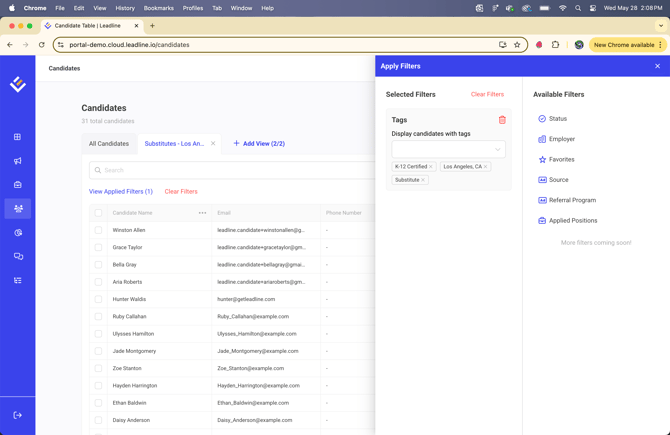
Note: When you apply filters, the table will refresh automatically and retain the applied filters; there is no need to click a button to save them to the view.
Once you are done applying filters, simply close out of the Apply Filters drawer, and your done!
How do I Delete or Rename a View?
You will notice each view has an "X" icon next to the view name. If you click the "X", the view will be hidden from the UI but still saved. To delete a view entirely click the 'Add View' button to display a list of all available views. Next to each view are two icons:
- The Pencil Icon - When clicked, you will be asked to rename the view
-
The Delete Icon - Upon clicking, a confirmation modal will prompt you to confirm whether you wish to permanently delete the view. This action cannot be undone, so exercise caution when removing views.
Note: You are unable to rename or delete the 'All Candidates' view
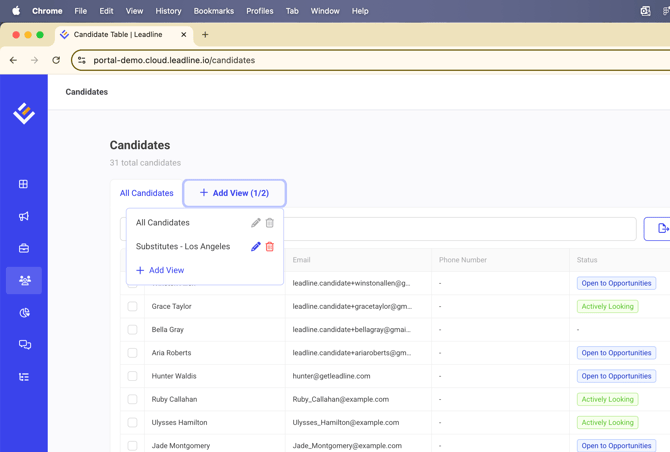
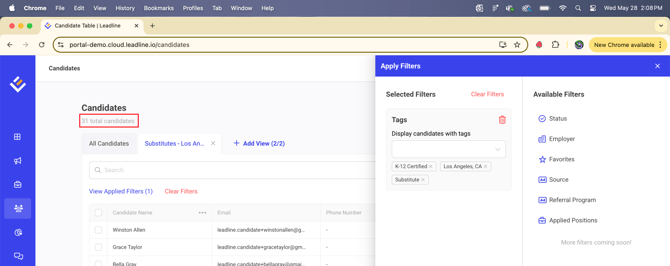
Note: The "___ total candidates" displayed in the page header displays the number of candidates within the view you are currently in.
Can I Export Views from my CRM?
Yes, you can click the 'Export View' button to quickly export a .csv file of candidates within the displayed view.
Can I Change the Number of Candidates per Page in my Views?
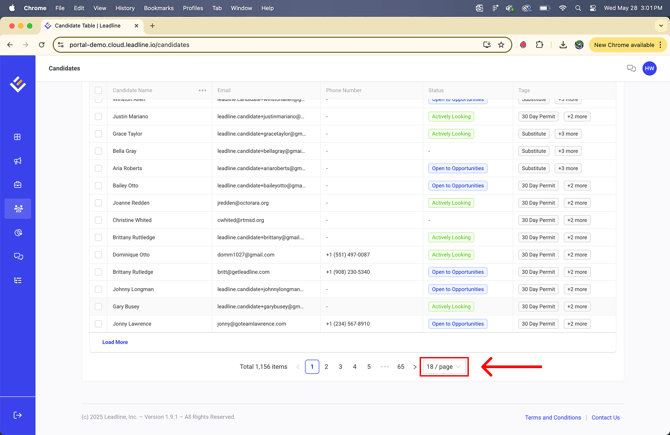
Yes, at the bottom of each table, you have the option to display either 18, 32, or 100 candidates per page. This feature is crucial for executing bulk actions efficiently.
Bulk Actions Behavior
The same bulk actions remain available for use; however, we have revised the functionality of the bulk select buttons slightly.
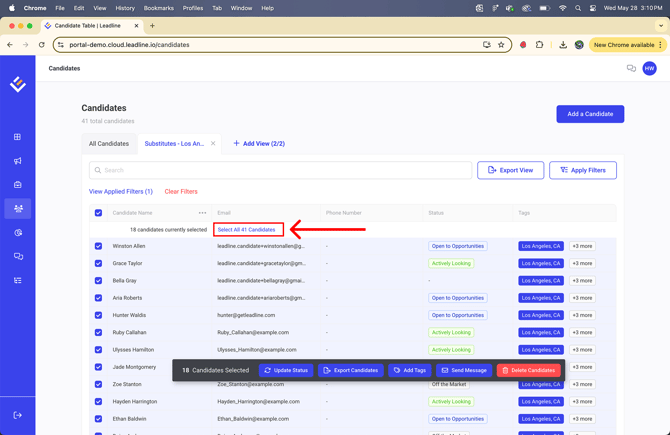
By clicking the checkbox adjacent to the 'Candidate Name' column, all candidates currently displayed on the page will be selected by default; for instance, if 18 candidates are shown, only those 18 will be selected. To select every candidate within the view, utilize the select all candidates option for a swift selection of all candidates in the view.
Updates to Sending Messages via Bulk Select
To avoid spamming candidates and overloading the system, certain safety measures have been put in place to ensure that performance and deliverability remain unaffected when sending messages to candidates. For example, if more than 500 candidates are selected, you must have a registered campaign in order to send that many messages at once to avoid trust score issues and deliverability. To learn more about why you have to register campaigns, visit our 'Why Do I Need to Register a Campaign?' page.
Note: If you attempt to send 500 messages or more at once (SMS or Email), the send message button will be disabled until the request has finished processing.