
Within each position you create, every channel listed in the Channel Tracking Links tab has an associated QR Code.
Note: Each QR code is uniquely tied to its corresponding link. To ensure accurate candidate attribution and reporting, always confirm you are using the correct QR code for each channel.
There are two ways to quickly access QR codes from your positions:
- Accessing QR Codes for positions directly from the 'Positions' page
- Accessing QR Codes from within the 'Channel Tracking Links' tab
Accessing QR Codes for positions directly from the 'Positions' page
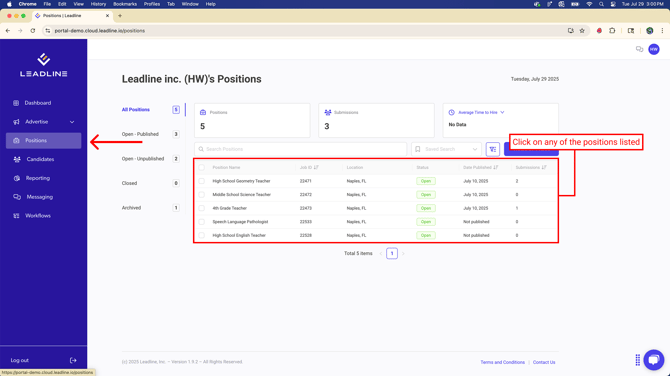
The simplest and fastest way to access QR Codes for your positions is to:
- Navigate to the 'Positions' Tab in the global navigation
- From the list, click a position you want to download the QR Code from
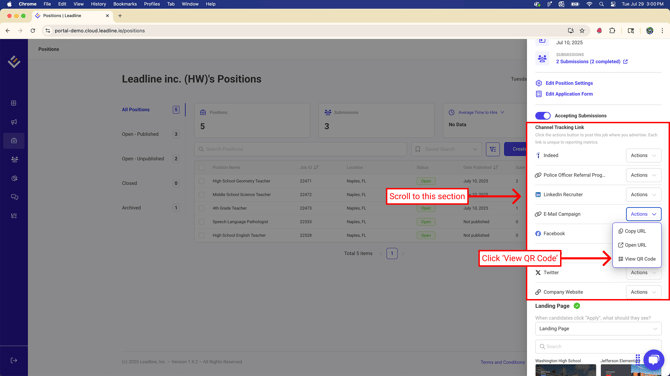
- Within the drawer, scroll to the 'Channel Tracking Link' section (directly below the 'Accepting Submissions' switch)
- Using the actions button next to each link, click 'View QR Code'
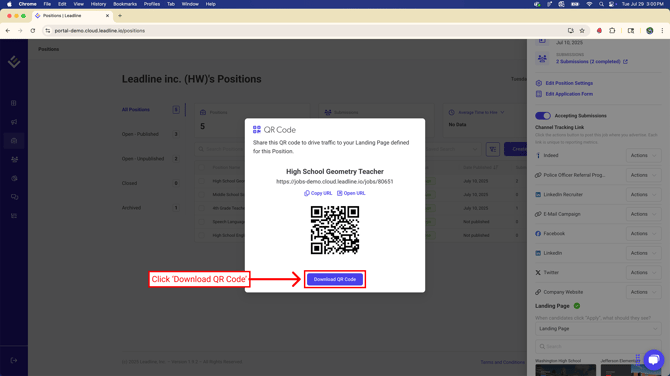
- Click 'Download' QR Code to Download the QR Code
Accessing QR Codes for positions directly from the 'Channel Tracking Links' tab
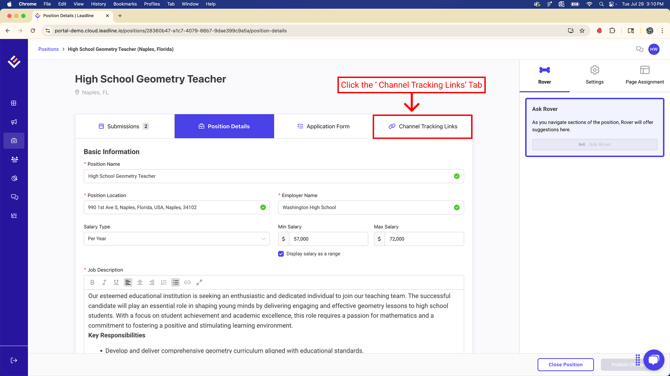
You can also access QR Codes for your positions from within an individual position as well. To access QR codes from the 'Channel Tracking Links' tab:
- Navigate to the Positions page
- Click on a Position
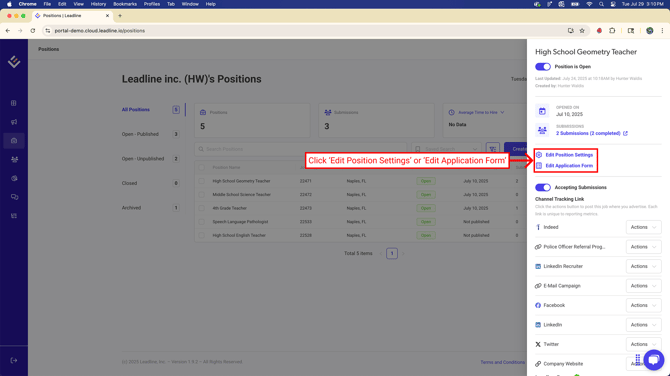
- Click on 'Edit Position Settings'
- Click on the 'Channel Tracking Links' tab
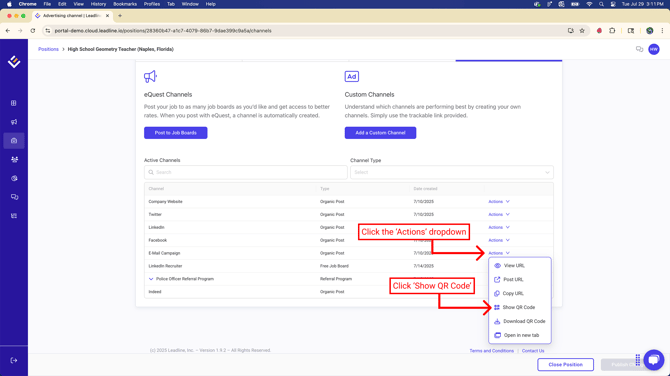
- Click the 'Actions Dropdown' from the list of channels
- Click 'Show QR Code' from the dropdown
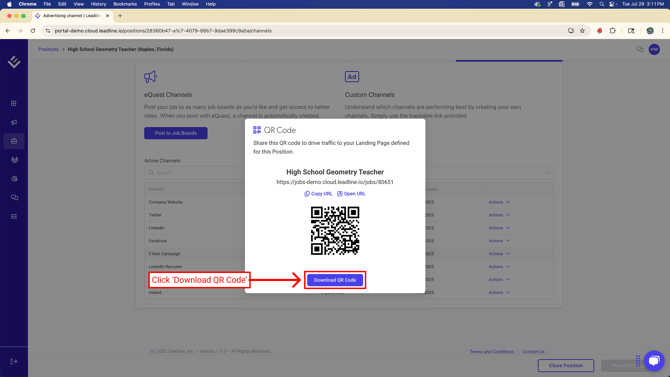
- Click 'Download QR Code'
Remember, creating new channels will automatically create QR Codes for you. If you want to learn more about creating new channel links, visit our knowledge hub article: How do I Create Channel Links? (coming soon!)