
Who this guide is for: Leadline admins who want to connect their existing Indeed account to Leadline and organizations considering Leadline that want to understand how it works with Indeed.
In this guide
- What is the Leadline + Indeed integration?
- Why it matters
- How it works
- What data is shared
- Installation guide (for new and prospective customers)
- Activate and manage Indeed Apply
- Checking your jobs on Indeed
- Best practices
- Troubleshooting
- Frequently asked questions
- Privacy and security
- Getting help
What is the Leadline + Indeed integration?
Leadline is an official Indeed integration partner. The integration connects your Leadline account to Indeed, the world's largest job site, so your open roles reach more candidates with less manual work.
The integration has two parts:
| Feature | What it does for you | Availability |
|---|---|---|
| Job Sync | Automatically posts your Leadline jobs to Indeed, keeps them up to date, and removes them when they close. | Available now |
| Candidate Status Sync | Lets Indeed know how candidates who applied through Indeed are progressing in your hiring process. | Available now (opt-in) |
You also choose how candidates apply. This is a company-wide setting that applies to all of your jobs:
| Apply option | Candidate experience |
|---|---|
| Leadline Apply (default) | Candidates click through from Indeed to your Leadline application page. |
| Indeed Apply (opt-in) | Candidates apply directly on Indeed using their Indeed profile and resume. Their application still lands in Leadline. |
Why it matters
Post once, reach more candidates. Create a job in Leadline and it appears on Indeed automatically. No copying and pasting, no second login.
Keep everything accurate. When you edit or close a job in Leadline, Indeed updates too. Candidates don't apply to roles you've already filled.
Make applying easier for Indeed users. With Indeed Apply turned on, candidates can apply in a few taps, which typically means more completed applications, especially from mobile job seekers.
Keep one source of truth. Every applicant, whether they came from Indeed Apply or clicked through to Leadline, ends up in the same Leadline pipeline. Your data stays clean and in one place.
Get better candidates over time. With Candidate Status Sync, Indeed learns which applicants move forward in your process and uses that to show your jobs to better-matched job seekers.
How it works
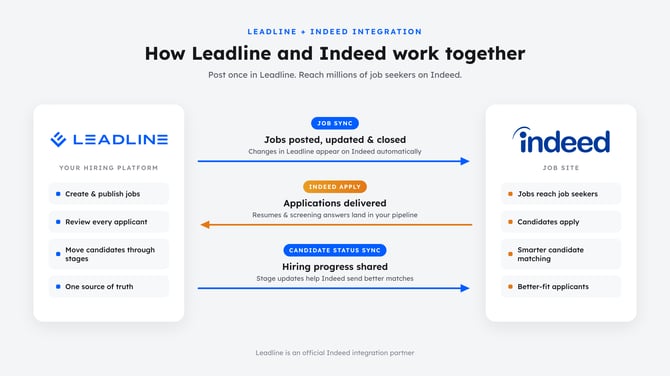
Posting Jobs
Here's what happens when you take action in Leadline:
| When you… | Leadline automatically… |
|---|---|
| Publish a job with Indeed turned on | Posts the job to Indeed |
| Edit a job (title, description, pay, location, etc.) | Updates the job on Indeed |
| Close, fill, or unpublish a job | Removes the job from Indeed |
| Reopen a closed job | Re-posts the job on Indeed |
Note: Indeed reviews every new posting to make sure it meets their job posting standards. Most jobs appear within minutes, but it can take up to about two hours.
Important: Always make changes in Leadline, not on Indeed. Leadline is your source of truth, and the next update from Leadline will replace any edits made directly on Indeed.
Receiving applications
With Leadline Apply: A candidate finds your job on Indeed, clicks Apply, and is taken to your Leadline application landing page. They complete your full application, including any video questions.
With Indeed Apply: A candidate applies right on Indeed. Leadline receives their application, resume, and answers to your screening questions, and adds them to your pipeline just like any other applicant.
Sharing candidate progress (Candidate Status Sync)
Once a company admin opts in to Candidate Status Sync, Leadline lets Indeed know each time you move a candidate from Indeed to a new stage, such as Interview, Offer, or Hired. Indeed uses this information to improve which job seekers see your jobs.
After opting in, there's nothing extra to do. Just keep moving candidates through your workflow stages as you normally would.
What data is shared
We only share what's needed to post your jobs and manage applications.
From Leadline to Indeed
| Data | Why it's shared |
|---|---|
| Job title, description, and location | To create your job posting |
| Pay, benefits, schedule, and qualifications | To display complete job details to candidates |
| Source name (your company's legal name) | To show who is hiring |
| Job contact email (and hiring manager or recruiter, if listed) | Required by Indeed for posting |
| Job ID and requisition ID | To keep your Leadline job and Indeed posting linked |
| Screening questions (Indeed Apply only) | To show your questions in the Indeed Apply form |
| Candidate hiring stage and date changed (Candidate Status Sync only) | To help Indeed improve candidate matching |
From Indeed to Leadline
| Data | When it's shared |
|---|---|
| Candidate name, contact details, resume, and answers to your questions | When a candidate uses Indeed Apply |
| Indeed application and tracking IDs | So Leadline knows the candidate came from Indeed |
| Job status on Indeed (live, expired, needs attention) | When a position is published in Leadline |
What is not shared
- Candidates from other sources (your careers page, referrals, other job boards) are never sent to Indeed.
- Interview notes, scorecards, internal comments, and documents uploaded by your team are never sent to Indeed.
- Candidate Status Sync shares only the hiring stage and the date it changed, not resumes or contact information.
Installation guide (for new and prospective customers)
Thinking about Leadline? Here's what getting connected to Indeed looks like. Most customers are posting to Indeed on their first day.
What you'll need
- An active Leadline account with Company Admin access (required to open the Admin Hub)
- Your company's legal name
- A job contact email that uses your company domain (for example,
jobs@yourcompany.com, not a Gmail address) - An Indeed employer account (optional, but needed to sponsor jobs or view Indeed analytics)
Tip: Indeed requires the job contact email to use your company's domain. Using a company email avoids posting delays.
Step 1: Make sure the Indeed job posting connection is enabled
- Sign in to Leadline as a company admin.
- Click your initials in the top-right corner of the page to open the Admin Hub.
- Go to Integrations → Job Board Integrations → Indeed.
- Check whether the Opt-in buttons for Candidate Status Sync are showing.
- If you see them, the Indeed job posting connection is enabled. Continue to Step 2.
- If you don't see them, contact your Leadline Customer Support representative and ask them to enable the Indeed job posting connection for your account.
Step 2: Enter your company details
On the Indeed integration page, fill in these two fields:
| Field | What to enter |
|---|---|
| Source name | Your company's legal name. This is how your company appears on Indeed. |
A job contact email that uses your company's domain (for example, jobs@yourcompany.com). |
Click Save when you're done.
Step 3: Opt in to Candidate Status Sync
On the same Indeed integration page, click Opt-in for Candidate Status Sync and follow the prompts. From then on, stage changes for candidates who applied through Indeed are shared with Indeed automatically. See Sharing candidate progress.
Step 4: Decide whether to use Indeed Apply
When your integration is first set up, Indeed Apply is off, and candidates apply through your Leadline application.
If you'd like candidates to apply directly on Indeed instead, opt in from this same page. See Section 6 for step-by-step instructions. You can opt in or out at any time.
Step 5: Publish your jobs
That's it! Positions you publish in Leadline automatically begin posting to Indeed.
To publish a position, follow the Leadline knowledge docs on creating and publishing positions, or ask the Rover agent to publish it for you.
Note: Indeed reviews each new posting before it goes live. Most jobs appear within a few hours.
Activate and manage Indeed Apply
Indeed Apply lets candidates apply directly on Indeed with their saved Indeed profile and resume. Their application, resume, and answers are still delivered to your Leadline pipeline.
Before you start
- Indeed Apply is off by default. When your Indeed integration is first set up, candidates apply through your Leadline application.
- You must be a company admin. Only company admins can open the Admin Hub, where Indeed Apply is managed.
- It's a company-wide setting. When you opt in, Indeed Apply is turned on for all of your jobs posted to Indeed. You can't turn it on for some jobs and off for others.
- The Admin Hub is the only place to manage it. Indeed Apply can't be turned on or off from an individual job.
Is Indeed Apply right for you?
| Indeed Apply may be a good fit if… | Leadline Apply may be a better fit if… |
|---|---|
| You want the fastest, simplest apply experience | Your applications use video questions |
| You're hiring for high-volume or hourly roles | You want every candidate to see your full branded application |
| Many of your candidates apply on mobile devices via the Indeed app | You collect information Indeed Apply doesn't support |
Video questions and lead scores
Indeed Apply does not support video questions. If a job includes a video question and Indeed Apply is on, the video question is skipped for candidates who apply through Indeed.
A skipped question counts against the candidate's lead score. Candidates who apply through Indeed may score lower than candidates who answered the video question, even if they're equally qualified.
To avoid this, mark video questions as weightless in the job's application form. A weightless question doesn't count toward the lead score, so skipping it won't lower the candidate's score.
Before you opt in: Indeed Apply applies to all of your jobs, so review every job that uses a video question. Mark those questions as weightless, or decide whether Leadline Apply is a better fit for your organization.
Turn on (opt in to) Indeed Apply
- Click your initials in the top-right corner of any Leadline page to open the Admin Hub.
- Go to Integrations → Job Board Integrations → Indeed.
- Click Opt-in.
- Review and consent to share data with Indeed.
Consent is required, because using Indeed Apply means you agree to abide by Indeed's Terms of Service, Cookie Policy, and Privacy Policy. - After consenting, click Opt-in to confirm.
The page updates to show that Indeed Apply is on, along with the date it was enabled. Your jobs on Indeed will begin offering Indeed Apply automatically.
Screening questions
Your screening questions carry over to the Indeed Apply form automatically, including:
- Short and long text answers
- Number and date answers
- Single-choice and multiple-choice questions
- File uploads
Equal opportunity (EEO) questions for U.S. jobs are shown separately from your screening questions and are always optional for candidates.
Turn off (opt out of) Indeed Apply
- Click your initials in the top-right corner of any Leadline page to open the Admin Hub.
- Go to Integrations → Job Board Integrations → Indeed.
- Click Opt-out.
- Confirm your choice in the pop-up window.
Indeed Apply is turned off for all of your jobs. New candidates from Indeed will be sent to your Leadline application. Candidates who already applied through Indeed Apply stay in your pipeline.
Checking your jobs on Indeed
Today: Jobs posted to Indeed show the label "Status unknown on Indeed" in Leadline. This just means Leadline can't yet display the live status. Your job is still being sent to Indeed.
After you sign in with your Indeed employer account, Leadline will show each job's status right on the job page:
| Status | What it means | What to do |
|---|---|---|
| Live | Your job is visible in Indeed search. | Nothing! |
| Needs sponsorship | Indeed requires this job to be sponsored before it appears in search. | Sponsor the job on Indeed, or leave it as is. |
| Update needed | Indeed found something that must be fixed. | Click the status to see details on Indeed, then fix it in Leadline. |
| Expired | Your job is no longer on Indeed. | Reopen the job in Leadline if you want it back. |
| Unknown | Indeed can't find the job, or your Indeed account doesn't have access. | Make sure you're signed in to the correct Indeed account. |
Click any status to open the job on Indeed for more detail.
Best practices
Write clear, complete job descriptions. Include pay, schedule, and requirements. Complete postings perform better and are less likely to be flagged during Indeed's review.
Post one job per location. If you're hiring the same role in three locations, create three jobs. Indeed shows each location separately to local job seekers.
Close jobs when they're filled. Closing a job in Leadline removes it from Indeed so candidates don't apply to roles that are no longer open.
Keep candidates moving. Move every candidate to the right stage, even early ones like Reviewed. With Candidate Status Sync on, this helps Indeed send you better-matched applicants.
Make video questions weightless when using Indeed Apply. Indeed Apply skips video questions, so marking them weightless keeps lead scores fair for candidates who apply through Indeed.
Make all edits in Leadline. Changes made directly on Indeed will be overwritten by your next update in Leadline.
Reopen within 30 days when you can. Jobs reopened within 30 days of closing keep their Indeed history. After that, Indeed may treat the job as a brand-new posting.
Troubleshooting
| Problem | Likely reason | What to do |
|---|---|---|
| My job isn't on Indeed yet | Indeed is still reviewing it | Wait up to two hours. |
| My job still isn't on Indeed after two hours | It didn't pass Indeed's review, or required details are missing | Check that pay, location, and contact email are complete. Contact support if it still doesn't appear. |
| My job shows on Indeed twice | The job was duplicated in Leadline, or posted on Indeed separately | Close the duplicate in Leadline. Remove any jobs you posted manually on Indeed. |
| A closed job is still on Indeed | Removal can take a little time | Wait a few hours. If it's still live, contact support. |
| My edits on Indeed disappeared | Leadline updated the job and replaced them | Make the change in Leadline instead. |
| Indeed Apply isn't showing on my jobs | Indeed Apply hasn't been opted in, or Indeed is still updating your postings | Check the opt-in status and enabled date in the Admin Hub. Allow a few hours for jobs to update. |
| Indeed Apply candidates have lower lead scores | The job has a video question that Indeed Apply skips | Mark video questions as weightless in the application form. |
| I can't find the Indeed Apply setting | You don't have company admin access | Ask a company admin to opt in, or to update your access. |
| Indeed applicants aren't showing in Leadline | Possible connection issue | Contact support with the job title and approximate application time. |
Frequently asked questions
General
Does it cost extra to post to Indeed through Leadline?
Yes. Posting your jobs to Indeed through the Leadline integration is an additional $100 per month. Optional support plans are also available for setup, ongoing maintenance and monitoring, and reporting on your integration’s performance. Contact your Leadline representative to learn more.
Do I need an Indeed account?
Yes. You’ll need your own Indeed employer account to use the integration. Leadline doesn’t provide Indeed accounts, but our team can help you create one and set up your job feed if you’d like assistance.
Is Leadline an official Indeed partner?
Yes. Leadline has been an official Indeed integration partner since September 2026.
Does Leadline replace my existing ATS or HRIS?
No. Leadline connects to the systems you already use and keeps the data flowing into them clean and accurate.
Jobs
Can I choose which jobs go to Indeed?
Yes, with one important exception. Indeed requires that every public job on your careers page is also sent to Indeed, so the jobs on your careers page and the jobs posted to Indeed must match. If Indeed finds that public jobs are being intentionally held back, it may remove or block your job postings.
Positions that are for internal candidates only can be held back. Leadline lets you mark these as internal so they’re never sent to Indeed./
Why does Indeed review my jobs?
Indeed checks every posting against its quality and safety standards to protect job seekers. This is standard for every job on Indeed.
What if I already posted jobs directly on Indeed?
Close those manual postings on Indeed once your Leadline jobs are live, so candidates don't see duplicates.
Can I sponsor jobs from Leadline?
Not yet. You can sponsor any Leadline job from your Indeed employer account.
Applications
Will I get applicants from Indeed Apply in Leadline?
Yes. Every Indeed Apply application is added to your Leadline pipeline with the candidate's resume and answers.
How do I know which candidates came from Indeed?
Candidates from Indeed are labeled with Indeed as their source in Leadline.
Can I use video questions with Indeed Apply?
No. Indeed Apply doesn't support video questions, so candidates who apply through Indeed skip them.
Will skipping a video question hurt a candidate's lead score?
Yes, unless the video question is marked as weightless in the job's application form. Weightless questions don't count toward the lead score, so Indeed Apply candidates aren't penalized for skipping them. See Video questions and lead scores.
Can I turn on Indeed Apply for only some jobs?
No. Indeed Apply is a company-wide setting. When you opt in, it applies to all of your jobs on Indeed.
Who can turn Indeed Apply on or off?
Only company admins, from the Admin Hub. See Section 6.
How do I know if Indeed Apply is on?
In the Admin Hub, go to Integrations → Job Board Integrations → Indeed. If you've opted in, you'll see the date Indeed Apply was enabled.
Why do I have to consent to share data with Indeed?
Indeed Apply runs on Indeed's site, so Indeed requires every employer using it to agree to its Terms of Service, Cookie Policy, and Privacy Policy.
If I switch from Indeed Apply back to Leadline Apply, do I lose applicants?
No. Everyone who already applied stays in your pipeline.
Candidate Status Sync
How do I turn on Candidate Status Sync?
A company admin opens the Admin Hub (your initials in the top right), goes to Integrations → Job Board Integrations → Indeed, and clicks Opt-in for Candidate Status Sync.
Which candidates are included?
Only candidates who applied through Indeed. Candidates from your careers page, referrals, or other job boards are never shared.
Will candidates see their status on Indeed?
Indeed uses status updates to improve its job search experience. Your internal notes and reasons are never shared.
Do I have to do anything after opting in?
No. Just keep moving candidates through your stages in Leadline, and status updates are sent automatically.
Privacy and security
- Only Indeed candidates are shared. Status updates are sent only for candidates who applied through Indeed.
- Minimal data. Candidate Status Sync shares the hiring stage and the date it changed, linked to Indeed's application ID. Internal notes, scorecards, and documents stay in Leadline.
- Indeed's role. Data shared with Indeed is handled by Indeed as a data controller under Indeed's privacy policy.
- Secure connection. Leadline connects to Indeed using secure, encrypted, token-based authentication. Your Indeed password is never stored in Leadline.
- Your consent. Indeed Apply is only turned on after a company admin consents to share data with Indeed and agrees to Indeed's Terms of Service, Cookie Policy, and Privacy Policy.
- You're in control. You can turn off Indeed for any job, or opt out of Indeed Apply at any time from Admin Hub → Integrations → Job Board Integrations → Indeed.
Getting help
- Customer Success: Contact your Leadline Customer Success Manager for help with setup or best practices.
- Support: Email support@getleadline.com or open a ticket in the Leadline Help Center. Include the job title and a short description of the issue.
- Indeed account questions: For sponsoring jobs, billing, or your Indeed employer account, contact Indeed Employer Support.
Last updated: November 2026