
This article is relevant to Company Administrators only. If you are not a Company Administrator, then you will not be able to access the information displayed in this article.
Previously in Leadline, Company Administrators had to visit several different pages across the platform to configure their organizational preferences which made the setup process long and sometimes confusing. To help remediate this, we have merged the following pages into one page we call the Admin Hub:
- Company Settings
- Branding & Appearance
- Integrations
- Billing & Users
How do I access the Admin Hub?
To access the Admin Hub, click on the avatar on the top right of the page that contains your initials and select "Admin Hub" from the menu.
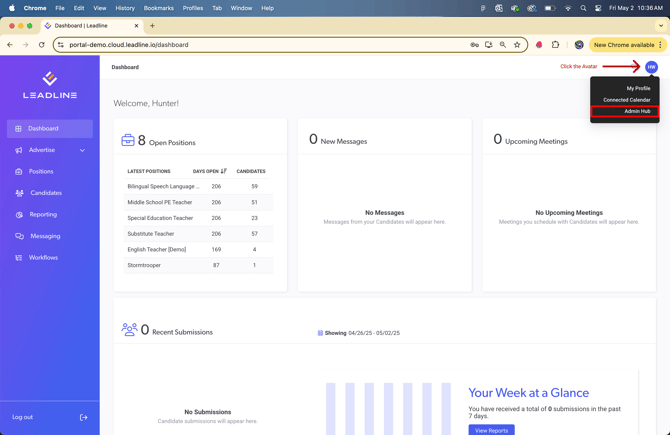
If you are not a Company Administrator, this page is not available to you. If you believe you should have access to this page, contact your Company Administrator to request access.
In the Admin Hub, you will be able to configure:
- Company Information
- Billing Information
- Users
- User Roles
- Workflows
- Position Tags
- CRM
- Benefits
- Job Board Integrations
- ATS Integrations
- Branded Email
- Branded Sign-in
1. Company Information
Within the Company Information tab, you can set up fundamental details about your organization, such as the company name, description, icons, and color scheme. Additionally, this tab allows you to manage your branding and appearance. Below is a concise overview of each input box and its purpose:
Company Name: The name of your company; this input is used when the 'Company Name' Smartline is used when sending candidates Emails and Text Messages.
If you are sending Emails and Text Messages to Candidates within a position, the Company Name identified in the Position Details page will be used in the Smartline instead.
Company Name: A brief description about your company. Adding a description about your organization helps your jobs show up higher in search results on sites like Google and Bing.
Company Logo: The Logo of your Company should be uploaded here. This logo will also be automatically populated in any new Match/Not-a-Match Pages you create (You can override this within the page editor at any time). This Logo will also be used in the global navigation bar on the lefthand side when it is expanded (Expanded and Collapsed views of the global navigation are displayed at the end of this list)
Company Icon: The Icon of your Company should be uploaded here. You can also use your logo as well if you prefer.
Navigation Bar Color: Determines the color of the global navigation bar
Navigation Text Color: Determines the color of the text within the global navigation bar
Primary Color: Determines the color of icons and buttons throughout the platform
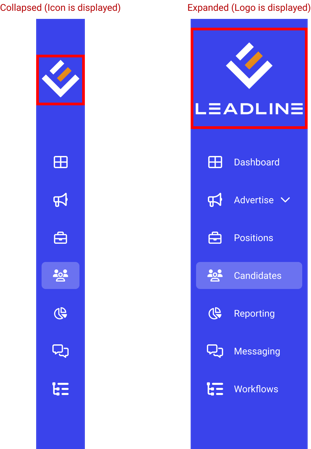
(Coming soon!) We will offer preset themes to simplify the process of selecting colors, saving you time and effort.
2. Billing Information
Currently, the billing information displays the number of seats included in your platform subscription. If you have subscribed via Stripe, you can manage your subscription by clicking the "Manage Subscription" button.
3. Users
In this tab, you can invite users within your organization to join the platform. Within the table you can see their name, email, role, status and last activity.
How do I add users to the platform?
- Click the "add user" button
- Input the User's name and email (phone number is optional)
- Select their Role (Scroll to the next section labeled 'User Roles & Permissions' for more information)
- Click "Add"
You can include as many users on the platform as permitted by your subscription. Should you need additional users, you can adjust your subscription via your Stripe account, if applicable. If you do not have a Stripe account, please reach out to your customer success representative.
How do I export the users within my organization?
To obtain a complete list of users in your organization, select the button featuring the download icon to retrieve a .csv file containing all users and the columns displayed in the table.
What is last activity?
You can efficiently track user activity within your organization by filtering based on their most recent login to the platform. The Last Activity feature exclusively records the most recent login of each user within your organization.
What is status?
Status indicates whether an account is currently active or inactive on the platform. This is particularly important when modifying the number of users in your subscription. You can preserve user data without completely deleting them from the platform.
4. User Roles & Permissions
User roles are a quick and easy way to assign user permissions within your organization when they are first invited to the platform. By default, there are three user roles
- Company Administrators
- Recruiters
- Hiring Managers
Company Administrators have full unrestricted access to the platform. We recommend users in this role to be those who oversee your entire recruiting team and efforts (HR Directors, Business Administrators, Head of Recruitment, etc.)
Recruiters are individuals tasked with crafting job descriptions, posting job openings, evaluating candidates, and more. They serve as the primary drivers of the recruitment process.
Hiring Managers are responsible for requesting job positions, assessing candidates presented by recruiters, and making the final decisions on hiring or rejecting candidates.
What are User Permissions and How do I Manage Them?
Within Leadline, you have the capability to control which users access specific information. For instance, one Hiring Manager might oversee positions exclusively in New Jersey, while another handles those in Florida. The platform can be configured so that the New Jersey Hiring Manager views only candidates and information pertinent to New Jersey positions, and the Florida hiring manager accesses only Florida-related data, thereby eliminating any potential confusion.
User permissions facilitate this process. Below is a detailed list of user permissions categorized by the specific pages of the platform that users can access. Below each permissions are the options you can select and a description of which each selection does.
Positions- Create New Positions
- Yes - User is allowed to create new positions.
- No - User is not allowed to create new positions.
- View Positions
- All Positions (Disabled)
- From Assigned Workflows Only (This option is automatically selected by default. Workflows and Collaborators control which positions a user can access. You can set these permissions during the Workflow setup).
- Edit Position Details
- Yes - User is allowed edit the Position Names, Salaries, Job Descriptions, Requirements and Benefits within assigned positions.
- View Only - User is not allowed to edit Position Names, Salaries, Job Descriptions, Requirements and Benefits within assigned positions.
- Edit Position Settings
- Yes - User is allowed to edit Position Tags within assigned positions.
- No - User is not allowed to edit Position Tags within assigned positions.
- Add and Remove Collaborators
- Yes - User is allowed to add and remove collaborators within assigned positions.
- View Only - User can only view existing collaborators within assigned positions.
- Set Workflows for Positions
- Yes - User is allowed to change the assigned workflow of assigned positions (note: when assigning a new Workflow to a Position, only the Workflows accessible to the user will appear in the dropdown menu).
- No - User is not allowed to change the assigned workflow of assigned positions.
- Create and Edit Application Forms
- Yes - User is allowed to create, remove and edit application form questions within assigned positions.
- View Only - User is not allowed to create, remove and edit application form questions within assigned positions.
- Open/Close Positions
- Yes - User is allowed to freely open and close assigned positions (note: this will directly affect any job board integrations you might have set up like Indeed, LinkedIn and ZipRecruiter).
- No - User is not allowed to open and close assigned positions.
- Publish/Unpublish Positions
- Yes - User is allowed to publish and unpublish assigned positions freely (note: this will directly affect any job board integrations you might have set up like Indeed, LinkedIn and ZipRecruiter).
- No - User is not allowed to publish and unpublish assigned positions.
- Assign Landing Pages to Positions
- Yes - User is allowed to assign landing pages to assigned positions.
- No - User is not allowed to assign landing pages to assigned positions.
- Create/Remove Channel Tracking Links
- Yes - User is allowed to create or remove Channel Tracking Links within assigned positions.
- No - User is not allowed to create or remove Channel Tracking Links within assigned positions.
- Can Export Position Reports
- Yes - User is allowed to export position reports using the 'Export Report' button when viewing submissions within a position.
- No - User is not allowed to export position reports using the 'Export Report' button when viewing submissions within a position (button is hidden from the user)
Submissions
- Change Submission Hiring Stages
- Yes - User is allowed to change stages of submissions within assigned positions.
- No - User is not allowed to change stages of submissions within assigned positions.
- Import/Export Submissions
- Yes - User is allowed to import submissions to assigned positions via the "add submission" button, as well as export submission data via .csv file of assigned positions.
- No - User is not allowed to import submissions to assigned positions via the "add submission" button, as well as export submission data via .csv file of assigned positions.
- Download Application Forms
- Yes - User is allowed to download individual application forms from candidates.
- No - User is not allowed to download individual application forms from candidates.
- Archive Submissions
- Yes - User is allowed to archive submissions from both the Kanban and List View within the Submissions Page
- No - User is not allowed to archive submissions from either the Kanban or List View within the Submissions Page.
Landing Pages
- Create/Delete Landing Pages
- Yes - User is allowed to create new and delete existing landing pages within the Pages page.
- No - User is not allowed to create new or delete existing landing pages within the Pages page.
- Edit Existing Landing Pages
- Yes - User is allowed to edit landing pages that are already created in the Pages library.
- View Only - User is only able to view landing pages within the Pages library.
Job Feeder
-
Can configure Job Feeders/Job Boards
- Yes – User is authorized to manage and update which positions are visible on your organization’s integrated job boards.
- No – User is not authorized to manage and update which positions are visible on your organization’s integrated job boards.
CRM
- View Candidates
- All Candidates - User is allowed to view all candidates that enter the database, regardless of the user's Workflow assignment or Positions which they are listed as Collaborators.
- From Assigned Positions Only - User is allowed to view candidates that enter the database from the user's Workflows assignment or Positions which they are listed as Collaborators only.
- Import/Export Candidates
- Yes - User is allowed to import and export candidates via .csv file directly within the CRM.
- No - User is not allowed to import or export candidates via .csv file within the CRM.
- Update Candidate Status
- Yes - User is allowed to update Candidate Status' within the CRM (Actively Looking, Open to Opportunities, Off the Market, etc.).
-
No - User is not allowed to update Candidate Status within the CRM.
- Assign/Remove Candidate Tags
- Yes - User is allowed to add and remove tags to candidates within the CRM.
- No - User is not allowed to add or remove any tags to candidates within the CRM.
- Create New Candidate Tags
- Yes - User is allowed to create new tags to candidates within the CRM.
-
No - User is not allowed to assigning only existing tags from the Admin Hub to candidates within the CRM.
- Add/Remove Files from Candidates
- Yes - User is allowed to upload or remove files associated with candidates within the CRM.
- No - User is not allowed to upload or remove files associated with candidates within the CRM.
- Can Create New Candidates in the CRM
- Yes - User is allowed to create new candidates via the 'Add a Candidate' button
- No - 'Add a Candidate' button is disabled
- Can Delete Candidates from the CRM
- Yes - User is allowed to delete candidate via the 'Delete Candidate' button when candidates are selected
- No - 'Delete Candidate' button is disabled when candidates are selected
Benefits
-
Create and Delete Benefits
- Yes – The user has permission to create and remove benefits while creating new positions, provided they do not have access to the Admin Hub.
- No – The user may only select from benefits that have been pre-defined within the Admin Hub.
Messaging
- Send Emails to Candidates
- Yes - User is allowed to send emails to candidates freely.
- No - User is not allowed to send emails to candidates.
- Send SMS Texts to Candidates
- Yes - User is allowed to send SMS Texts to candidates freely.
- No - User is not allowed to send SMS Texts to candidates freely.
- Create and Edit Message Flows
- Yes - User is allowed to create new, delete and edit existing SMS Message Flows
- View Only - User is restricted to viewing existing SMS Message Flows only.
- Create, Edit and Delete Email Message Templates
- Yes - User is allowed to create new, edit existing and delete Email Message Templates.
- View Only - User is restricted to viewing existing Email Message Templates only.
- Create/Remove SMS Message Templates
- Yes - User is allowed to Register New and remove SMS Message Templates.
- View Only - User is restricted to viewing existing SMS Message Templates only.
Workflows
- Create/Delete Workflows
- Yes - User can create and delete workflows freely.
- No - User is not allowed to create or delete workflows.
Reporting
- View and Access Reporting
- Yes - User is allowed to access the Reporting Page of the platform.
- No - User is not allowed to access the Reporting Page of the platform.
Each User Role can be tailored to meet your team's specific requirements, providing enhanced flexibility and expedited setup. We recognize that the recruitment process is not uniform, and the permissions listed may not fit every scenario. As a Company Administrator, you have the ability to modify permissions for individual users as needed. To do so, navigate to the Users tab and click the Three Dot Menu > Edit Permissions.
5. Workflows
Workflows determine your teams and process which you use Leadline for. For a full rundown of what Workflows are and how they work and how to create them, visit our Workflows Knowledge Hub article.
6. Position Tags
In Leadline, you can utilize position tags to enhance the organization of your internal processes. For instance, a position tag such as 'Department' can be employed to facilitate the assessment of departmental performance. These Position Tags are designed to include additional options within the tag itself. For example, a tag might be titled 'Department', with the additional options being the specific departments within your organization, such as Administration, HR, Marketing, etc.
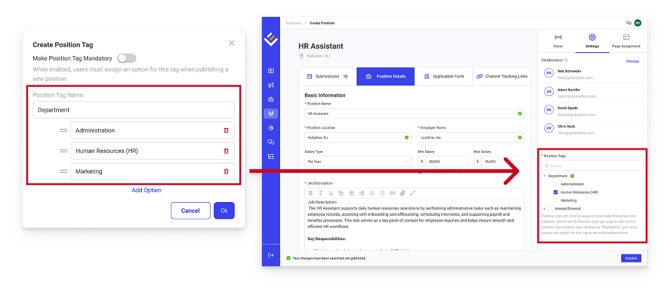
Utilizing position tags is an excellent method for evaluating the performance of departments or teams within your organization. Additionally, it aids in identifying specific positions you may be seeking, especially when managing several hundred or even thousands of positions within Leadline.
How do I create a Position Tag?
- Navigate to the 'Position Tags' tab and click the Create Position Tag button.
- Determine whether the tag is mandatory or not
-
When a tag is mandatory (i.e the toggle is switched on), users must assign at least one option within the tag to any newly created positions.
-
- Input the Position Tag Name and any options you need (your Customer Success Rep is a great resource to use when creating position tags!)
- Click "Ok"
How do I assign Position Tags to positions?
There are two different ways:
- Assign Position Tags in the Position Details Tab
- Assign Position Tags via Bulk Select
Assigning Position Tags in the Position Details Tab
- Navigate to any position details within a position
- Click "Settings" in the editor on the right side of the screen
- Navigate to Position Tags and begin checking/unchecking tags
Assigning Position Tags via Bulk Select
- Navigate to the Positions page
- Select the positions you want to assign a tag
- Click the 'Add Position Tags' button
- Select the desired Tags and click Save
7. CRM
In the CRM section of the Admin Hub, you have the ability to oversee the tags utilized by you and your team to facilitate candidate identification within your CRM.
To create a new tag within the CRM
- Click the "Add" button
- Enter the name of each tag you would like to use in your database.
- When finished, click done.
How do I assign tags to candidates?
There are several ways to assign tags to candidates.
- Via the candidate drawer within the CRM
- Within the candidate profile
- Using the bulk select feature within the CRM
Assigning a tag within the candidate drawer
- Click on a candidate within the CRM
- Scroll to the "tags" section
- Click "add tag"
- Select up to 5 tags to assign to the candidate
- Click "Save"
Assigning a tag within the candidate profile
- Click on a candidate within the CRM
- Click the View Profile button
- On the lefthand side, scroll to "tags"
- Click "add tag" (there is also a pencil icon at the top of the section, you can click that as well)
- Select up to 5 tags to assign to the candidate
- Click "Save"
Using the bulk select feature within the CRM
- Using the checkboxes, select the desired candidates
- Click "add tags" within the bulk select bar
- Select up to 5 tags to assign to the candidate
- Click "Save"
8. Benefits
When posting your jobs, you will want to display benefits to candidates make your jobs more attractive to generate more applicants. You can manage which benefits appear on your landing pages and which icons you want to associate with them.
9. Job Board Integrations
You can also manage your XML Feeds to external job boards directly within the Admin Hub. To learn more about XML Feeds, please visit our Job Board Integration page (coming soon!).
You can also manage your website widget from this page as well.
Note: Leadline does not offer job board accounts; instead, we integrate with your existing job boards through XML Feed (if compatible), enabling you to manage and analyze the performance of your positions directly within Leadline.
With each Job Board Integration, you can
- Configure Jobs
- View Activity
- View XML Feed URL
Configuring Positions using the provided job board integrations
By default, every new position you create in Leadline will be included in each job board integration unless told otherwise. In Leadline, you can pick and choose which positions get posted on each job board. For example, this is a great solution for when you don't want to promote internal jobs to external job boards.
To manage which jobs get posted on the feeder, click 'Configure Jobs' from the dropdown.
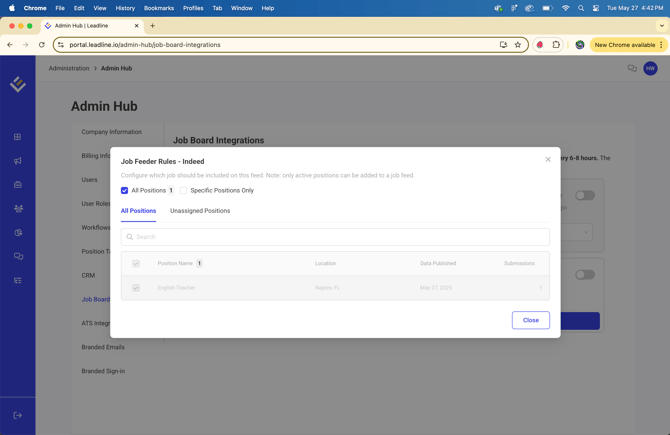
If you want to pick and choose specific positions to be posted on the job feeder, check 'Specific Positions Only' to begin individually selecting positions. Once you have selected the positions you want to use, click save and the feeder should be updated.
Note: Updates to your job feeders do not take effect instantly. Typically, job boards update every 4-8 hours. Please allow at least 12 hours before contacting customer success regarding the Job Feeders.
10. ATS Integrations
You can manage your Applicant Tracking Integrations directly within the Admin Hub. To learn more about Applicant Tracking Systems, visit our Applicant Tracking Systems Page.
11. Branded Emails
You can also configure your email domains so that notifications to both users and candidates come from your custom domain. To learn how to set up custom domain emails, visit our How To Set Up Custom Domain Knowledge Hub Article.
12. Branded Sign-in
Leadline offers personalized sign-in portals, allowing users to access the platform through secure, company-branded links for an enhanced experience. Copy the provided link and share it with other platform users to offer a completely customized branded login experience. The images and colors are directly sourced from the Company Information tab.