Even though a position may be created in Leadline, it needs to be marked as 'Published' in order to start receiving applicants. There are two ways to publish positions:
- Publishing a Position From the Position Details Page
- Using the 'Set Status' button from the bulk select bar within the Positions Page
Publishing a Position From the Position Details Page
The most basic and common way to publish a position is directly from the Position Details Page when viewing a position. Before publishing a position, the following criteria must be met:
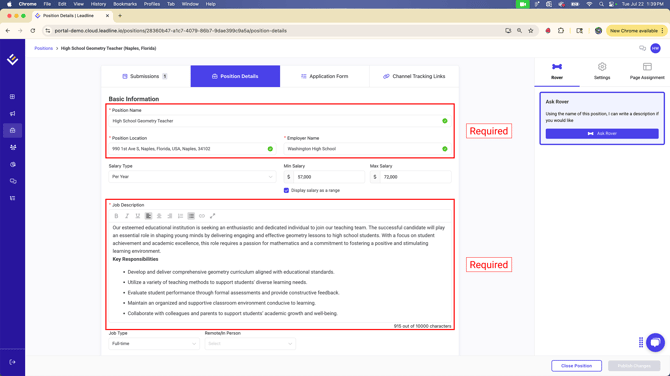
- All Required Position Details inputs must be filled to completion
- Position Name
- Position Location
- Employer Name
- Job Description
- A Landing Page selection must be configured from the dropdown:
-
- Landing Page (Directs users to a custom Landing Page you created in the 'Advertise' > 'Pages' Page of the platform. Visit our how to create a page article for more)
-
- Application Form (Directs the user instantly to the Application Form configured within the 'Application Form' Tab. Visit our how to create application form article for more)
- External URL: (Re-directs the user to an external URL of your choice after they input their name, email, phone number and provide consent into opting in to receive communication)
- A Post-Submission Page must be selected
- Landing Page, Post-Submission and Not-a-Match Pages can be configured in the 'Page Assignment' tab within the page editor of the Position Details page (see screenshot).
- Landing Page, Post-Submission and Not-a-Match Pages can be configured in the 'Page Assignment' tab within the page editor of the Position Details page (see screenshot).
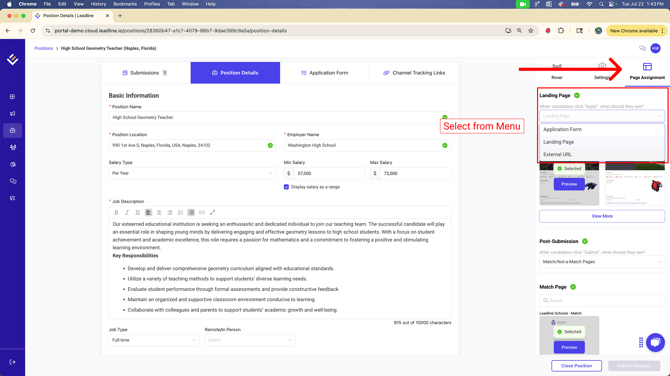
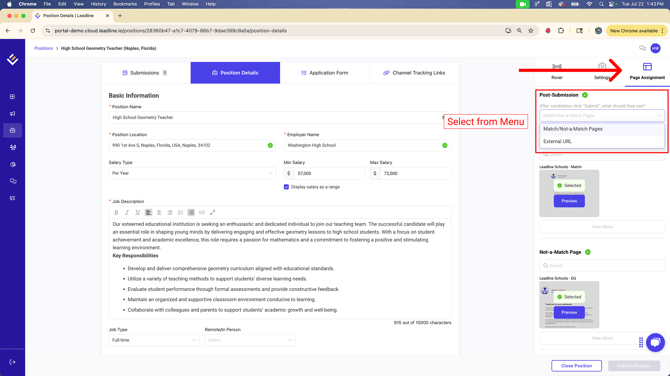
IMPORTANT: When utilizing job feeders such as LinkedIn Recruiter or Indeed, ensure the Landing Page option is set to 'Landing Page' in the dropdown menu for each position. Job feeders require positions to have a designated landing page in order to be included and uploaded via XML. Positions configured with 'Application Form' or 'External URL' will be excluded from the job feed and will not appear on the Job Board.
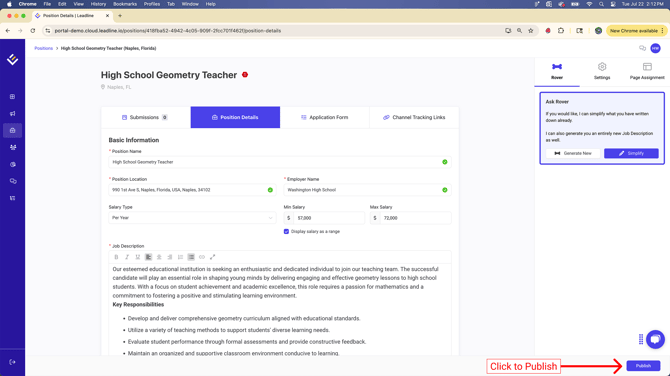
Once you have configured all required fields, the 'Publish' Button should illuminate. Click 'Publish' and your position is now ready to accept submissions!
Publishing a Position from the Positions Page using the Set Status button
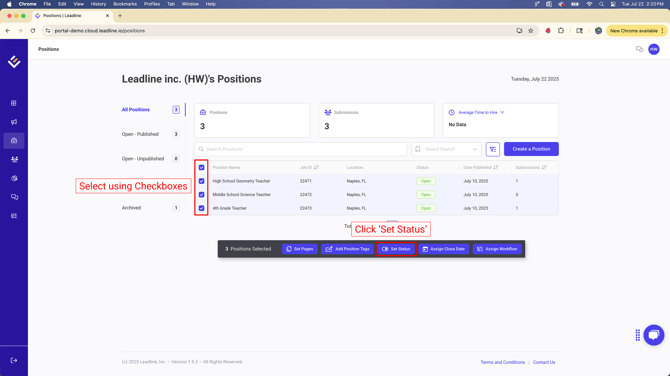
Assuming the previous criteria are met, you can publish multiple positions at once using the 'Set Status' bulk select button from the Positions Page directly. To Publish multiple positions at once,
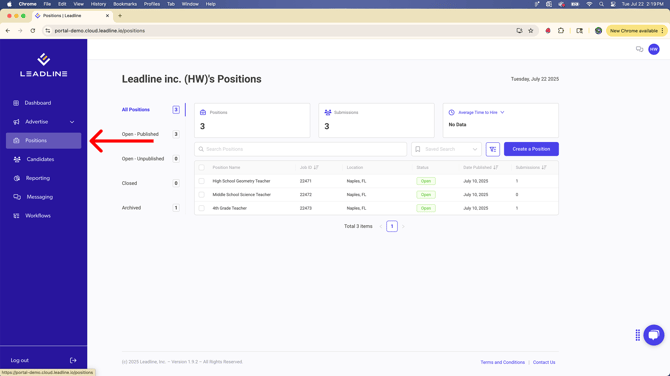
- Navigate to the 'Positions' tab in the global navigation tab
- Using the checkboxes, select which positions you want to publish
- Click the 'Set Status' button
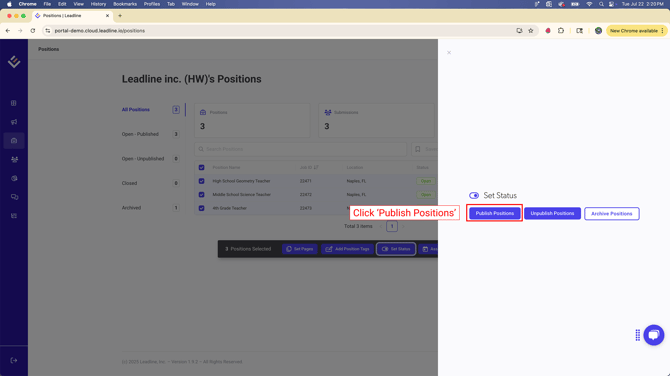
- Click 'Publish Positions'
Your positions are now published!