---
title: What are Application Forms and How Do I Use Them?
description: Application forms are simple 3-5 minute forms that collect information about a candidate's job-fit. They are designed to drive better collaboration across recruiters & hiring managers.
---
[Skip to content](https://docs.getleadline.com/how-to-use-application-forms#main-content)
[](https://docs.getleadline.com/)
- [Start Here](https://docs.getleadline.com/getting-started)
- [Guides](https://docs.getleadline.com/how-to-guides)
- [FAQ](https://docs.getleadline.com/faq)
- [Resources](https://docs.getleadline.com/resources)
Open main navigation
Close main navigation
- [Start Here](https://docs.getleadline.com/getting-started)
- [Guides](https://docs.getleadline.com/how-to-guides)
- [FAQ](https://docs.getleadline.com/faq)
- [Resources](https://docs.getleadline.com/resources)
- [Submit a Ticket](https://docs.getleadline.com/help)
[Submit a Ticket](https://docs.getleadline.com/help)
How can we help?
- There are no suggestions because the search field is empty.
1. [Knowledge Hub](https://docs.getleadline.com/)
2. [How-to Guides](https://docs.getleadline.com/how-to-guides)
3. [Pre-screening candidates](https://docs.getleadline.com/how-to-guides#pre-screening-candidates)
June 2, 2026
# What are Application Forms and How Do I Use Them?
## Application Forms are simple 3-5 minute forms that collect information about a candidate's job-fit. They are designed to drive better collaboration across recruiters & hiring managers.
Leadline allows you to collect information from your leads to assist you in faster hiring and decision making. To do this, the system lets you add application questions to your positions. Unlike most applications, at Leadline we are collecting something we call quality intent signals. **Quality intent signals** gauge how interested a candidate is to work for your company, based upon how much information they are willing to give you up-front.
Some examples of use cases and questions for the Leadline Apply Process:
1. Collect a resume.
2. Collect a virtual cover letter.
3. Collect a start-date.
4. Pre-capture acknowledgment of things that will be required "during later stages in the application process"
5. Collect working preferences (eg. shift schedules, remote types)
6. Collect proof of on-hand licensure or certification
### Opt-in Capture
Every application in Leadline has a basic compliance attestation and capture form that must be completed prior to revealing the application form questions. This is used to weed-out people who try to skip the application altogether or potentially provide inaccurate/fraudulent information. The compliance form captures the candidate first name, last name, email address, phone number, and TCPA opt-in consent to be communicated with.
### 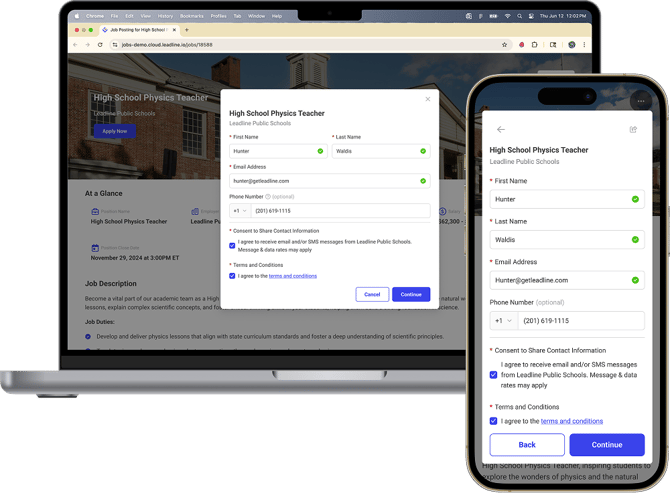
**Incomplete Submissions**: Occasionally, candidates may provide only basic contact details before exiting the page. While these candidates cannot be evaluated against others, Leadline retains their contact information, allowing you the opportunity to re-engage them for re-application. These individuals are classified as 'Incomplete Submissions' within the applicant pool for that position.
To begin creating Application Forms for positions, you must first access the 'Application Form' tab within a position to open the editor.
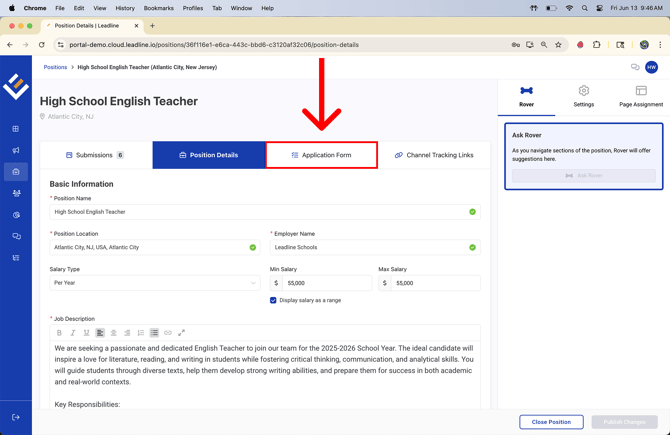
**Note:** Some users may be able to access this tab but not change anything. This is due to your permission settings, contact your Company Administrator for access to edit Application Forms.
### How Do I Add Questions to my Application Form?
There are a few different ways to add questions to your Application Forms:
1. Ask Rover
2. Importing Application Forms from other positions
3. Manually building Application Forms using the editor
**Note:** By default, every job has 1 pre-defined question: a resume collection question, and the resume upload is not mandatory (optional).
#### **1. Ask Rover**
The simplest and easiest way is to utilize your AI Assistant Rover to quickly generate complete application form questions. Simply click the 'Ask Rover' button, and Rover will consult the details provided in the 'Requirements' section of the position details tab to formulate questions deemed suitable for evaluating and screening candidates, aiding in assessing their suitability for the role. To learn how to configure the requirements for Rover to reference when generating application forms, **[visit our how to create a position knowledge hub article](https://docs.getleadline.com/how-to-create-publish-a-position)**. Below is a video demonstrating using Rover to generate Application Forms in one click.
#### **2. Importing Application Forms from Other Positions**
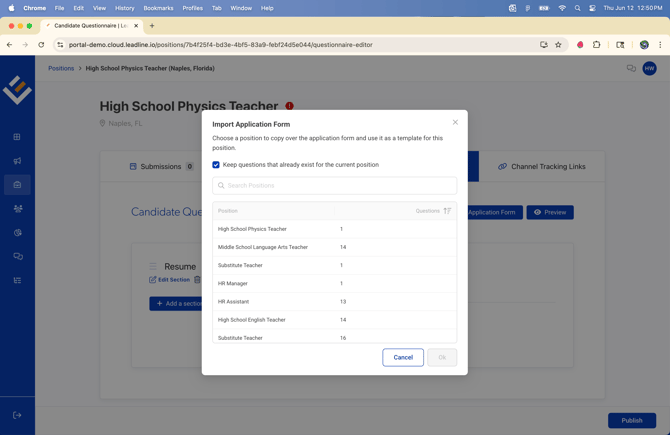
Another simple way is to reuse application forms from other positions within your organization. If your organization maintains a uniform set of screening questions that is required for all positions, this approach is best for you. Simply click the 'Import Application Form' button to begin. A list of all other positions within your organization will be displayed. Select a position, then select 'Ok' to begin importing the Application Form from the selected position.
**Note:** By default, the option 'Keep questions that already exist for the current position' is selected to safeguard any questions you may have already begun in the application form you are working on. To replace the entire application form, simply deselect this option before clicking 'Ok'.
****
**"Help! I am trying to import an Application Form to the position I am currently working on and don't see any postions to import from!"**
To import Application Forms, ensure you have at least one position with an existing Application Form. If no positions appear in the list when you click the button, you need to create an application form in your current position to use as a template for others. Should you suspect an error, **consult Rover for help.**
#### **3. Manually Building Application Forms Using the Editor**
You have the flexibility to tailor your Application Forms to ensure you pose the appropriate questions to identify the most suitable candidates for the position. Prior to proceeding, consider the following key points for constructing an effective Application Form:
1. Leadline's application forms are designed to be concise and focused; prioritize the essentials! We advise limiting application forms to 15 questions or fewer. Lengthy application forms can result in candidate drop-off, prolonging the hiring process and increasing difficulty for everybody involved.
2. In Leadline, Application Forms generate a Match Score as candidates submit Application Forms for the position. These scores are calculated according to the criteria you establish. For instance, if a certification is required, a candidate who provides their certification will receive a higher score than one who does not.
3. Match Scores are also influenced by the level of completion; akin to standardized testing, the more details a candidate provides, the higher their match score will be. Even if they do not respond to every question as preferred, they will still achieve a higher Match Score than those who leave questions unanswered.
4. We have plans to enhance our Application Form Editor in late 2025 which will include the use of Rover, automations using candidate response logic, custom question libraries, weightless questions and more. [Subscribe to our release notes](https://docs.getleadline.com/product-release-notes)to stay up to date so you know when we make updates to the Application Form feature.
**Creating A Section**
You will notice for every new position you create, there will be a section labeled 'Resume' by default with a simple question asking the user to upload a resume. We suggest leaving this section to start as its a great starting point for candidates to upload their resumes.
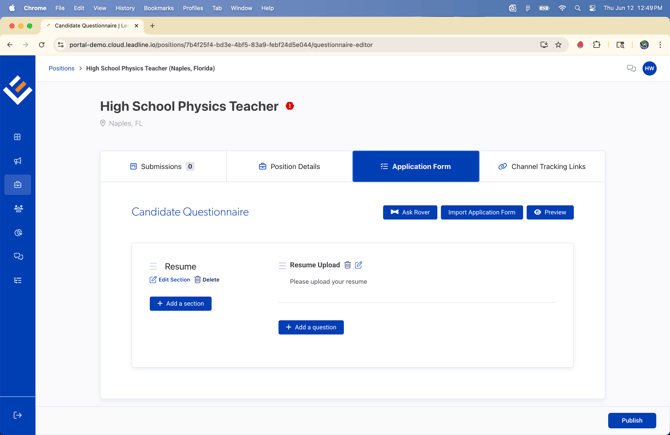
If you prefer, you can rename the section by clicking 'Edit Section' below the section header
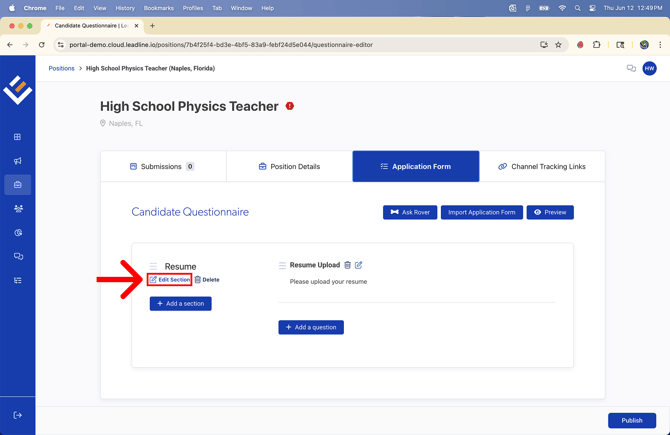
Modifying the section enables you to change its name. In the dropdown menu, several options are available to assist you. If you wish to rename the section to a custom name not listed, simply type your desired name and press the return (enter) key on your keyboard. Click the 'Edit' button to apply the changes.
To create an entirely new section, select the 'Add a Section' button located beneath the section header, assign a name to the section, and then click 'Add'. This action will insert a new section immediately below.
Three grip lines are visible to the left of the section headers. You can click, drag, and hold these lines to quickly change the order of sections on the Application Form.
.png?width=670&height=435&name=Grip%20Lines%20(New).png)
To remove sections completely, click 'Delete' located directly beneath the section header. This action will remove the section along with all its questions, so exercise caution when opting to delete sections. You cannot delete all sections within an application form.
**"Help! I don't want to have any application form questions and I just want to collect candidate information to generate leads!**
All Application Forms must include at least one section and one question within that section, such as the default resume question. If you prefer not to use an Application Form in the candidate experience, refer to our [How to Assign Pages Knowledge Hub Article](https://docs.getleadline.com/how-to-create-pages). After gathering the candidate's name, email, and phone number, you can redirect them to an external URL instead of the application process. However, we advise against this method as it limits your ability to assess candidate quality, though it remains an option if desired.
**Creating Application Form Questions Manually**
To add questions within sections, click the 'Add a question' button to begin.
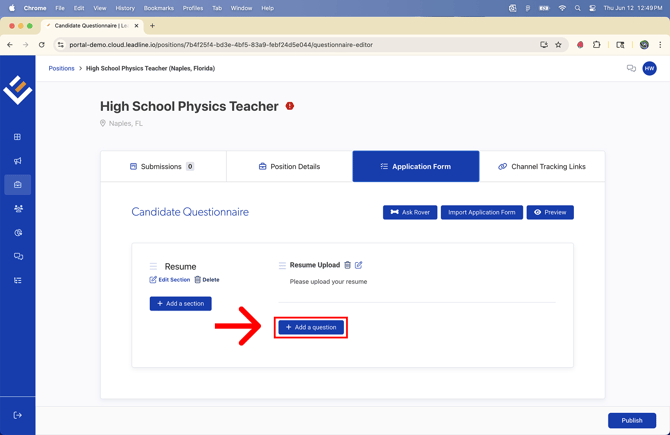
Upon clicking the button, you can insert a new question in two different ways:
1. Via the Question Library
2. Via Custom Question
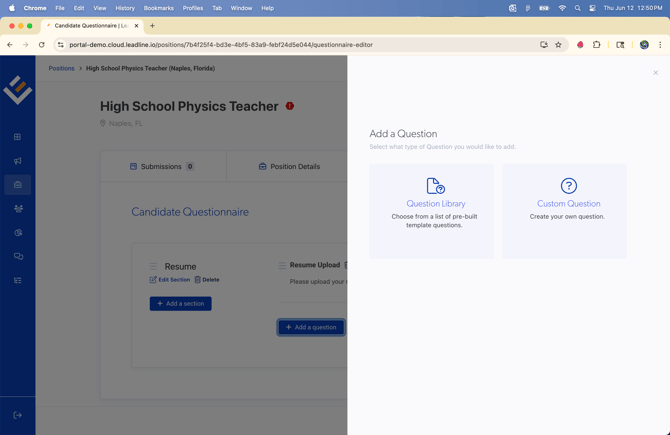
**What is the Question Library?**
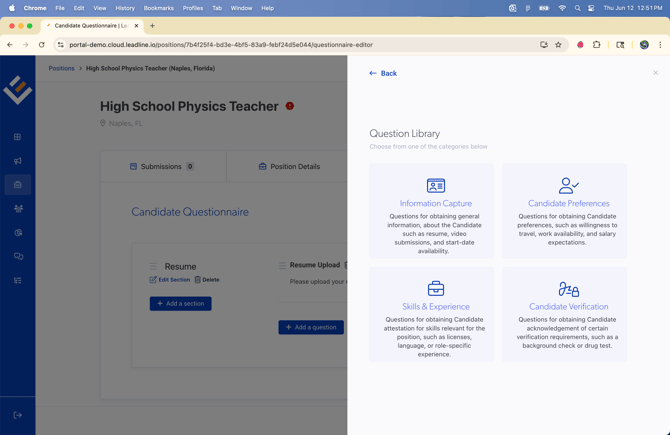
The Question Library is a set of screening questions we have produced for you to use. These questions are basic screening questions that include things like
1. Are you eligible to work in the United States?
2. How many years of relevant experience do you have?
We suggest utilizing the question library as an initial resource to inspire and formulate effective candidate questions, enabling you to screen applicants efficiently and identify the most suitable candidates for your roles.
**Note:** The ability to create and maintain a personal library of Application Form questions will be available soon!
**How do I Create a Custom Question?**
To create a custom question, select the 'Custom Question' option to craft Application Form questions tailored to your organization's needs. Upon selecting this option, you will need to specify the following:
1. The section where the question resides in (this option defaults to the section where you clicked the 'Add a question' button)
2. Question Title
3. Question Text
4. Determine whether the question is a screening question
5. Question type
6. Preferred answer choice (if any)
**What is the Question Title?**
The Question Title is a concise label for the question. It is primarily utilized during the review of candidate submissions on the submissions page. It should be brief and straightforward to allow for easy comprehension of the question's context without needing to read the full question when evaluating submissions.
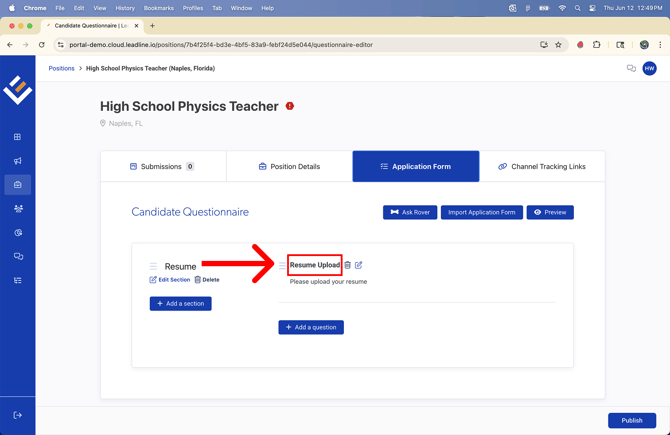
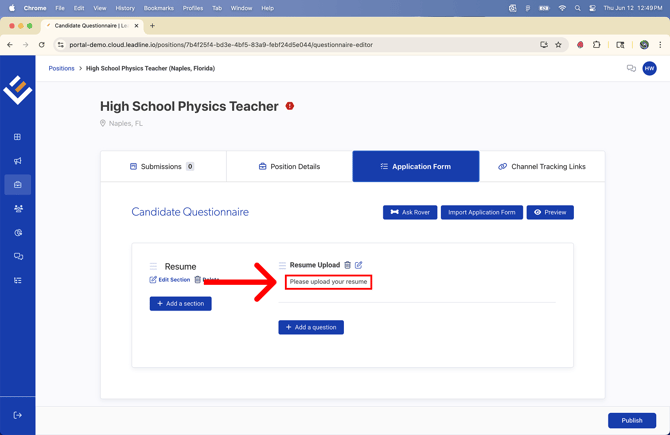
**What is the Question Text?**
The Question Text is the complete question you want candidates to answer. Ensure they are easy to understand for improved readability.
**What is a Screening Question?**
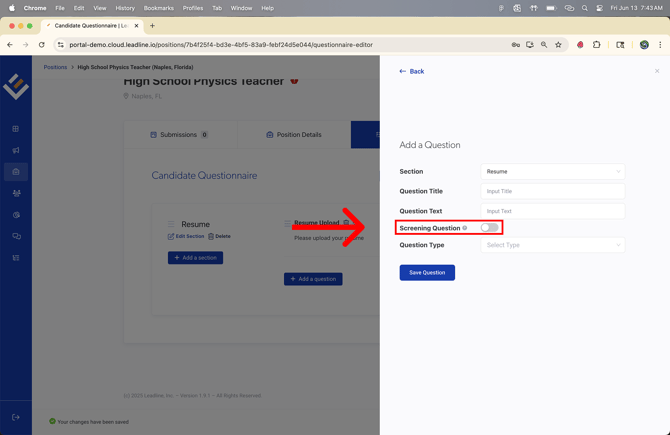
A Screening Question is a mandatory question that candidates must provide a response to. This type of question acts as a decisive filter; if a candidate fails to respond correctly, they will receive a general disqualification notice (not-a-match page) upon submission of the Application Form, irrespective of their match score.
For example, when recruiting substitute teachers in New Jersey, it is required for all teachers to possess a valid state teaching license. You can incorporate a screening question that obliges candidates to provide a copy of their teaching license with their application. If they do not have their teaching license, they will not be able to submit their application form.
Rest assured, candidates can return to complete the application form later using the same email and/or phone number they used to start the application.
To mark a question as a Screening Question, click the toggle switch.
**What is a Question Type?**
Question types are the types of formats that application forms can be. Examples of question types are:
1. Range (minimum/preferred selections)
2. Single choice selection
3. Multiple choice selection
4. Free text reply
5. Photo or file upload
6. Video upload
7. Date selection
**Range (minimum/preferred selections)**
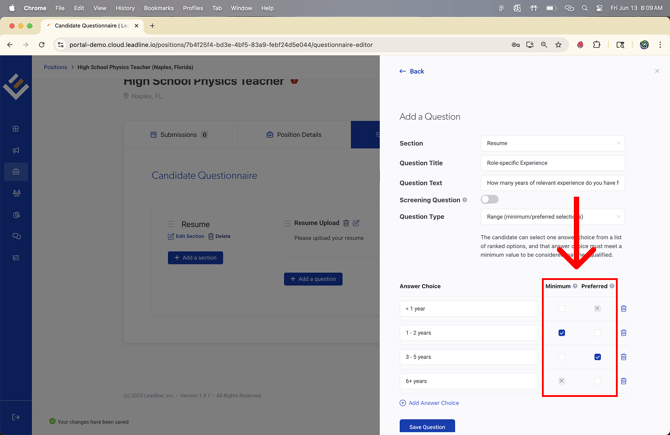
A Range (minimum/preferred selections) question is a method used to evaluate candidates by placing them within a specific set of data parameters to ascertain an appropriate match score. This type of question is particularly effective for assessing various candidate attributes, such as their level of experience, by allowing you to define both minimum and preferred criteria. For example, when inquiring about a candidate's experience level, you can set a minimum threshold that candidates must meet to be considered, as well as a preferred level that would indicate a stronger match. This approach not only helps in filtering candidates efficiently but also ensures that those who meet or exceed the preferred criteria are highlighted, thereby streamlining the selection process and enhancing the overall quality of candidate evaluation.
The image below is an example of a range question that requires at least 1 year of experience, however the preferred amount of experience is 3 - 5 years.
**Single Choice Selection**
A single choice selection question allows the candidate to select only one option from the provided choices, with a single preferred answer. We recommend using this question type for fundamental inquiries such as
1. Are you eligible to work in the United States?
2. Do you consent to a background check?
Like a range question, you can designate a preferred answer, and candidates who choose this response will receive a higher evaluation.
**Multiple Choice Selection**
A multiple choice selection question allows the candidate to select multiple options from the provided choices with multiple preferred answers. We recommend utilizing this question type for flexible inquiries, such as identifying which days of the week a candidate is available to work if the position is part-time.
**Free Text Reply**
A free text response question permits candidates to answer questions in their own words. For instance, you might inquire about how a candidate managed a past situation or their reasons for applying for the position. This approach allows candidates to articulate their thoughts in a manner that they believe best represents them, while still collecting essential information for screening purposes.
**Note:** Match Scores for Free Text Reply question types are determined by whether the candidate completes the question, rather than the content of their response.
**Photo or File Upload**
A photo or file upload serves as an efficient method for candidates to submit essential or mandatory documentation related to a position. For instance, in roles that require certification, these credentials can be gathered through the photo or file upload question type.
**Note:** Match Scores for Photo or File Upload question types are determined by whether the candidate uploads a file or not.
**Video Upload**
Leadline incorporates virtual interview screening within the Application Form, allowing candidates to submit video responses to your questions instead of written answers, if preferred. This feature facilitates the early resolution of initial interview questions, thereby accelerating the screening and hiring process. It also enables candidates to convey their responses in a manner they find most appropriate. We suggest posing questions such as:
1. Why are you applying for this position?
2. Why do you believe you are qualified for this position?
3. Why do you do what you do?
**Note:** Match Scores for video Upload question types are determined by whether the candidate uploads a video or not.
**Date Selection**
Lastly, in Leadline, you have the capability to pose questions to candidates concerning dates like their potential start dates, when they would be able to relocate and more which can be crucial for aligning hiring timelines with organizational needs. This comprehensive approach ensures that you gather all necessary information to make informed hiring decisions and streamline the onboarding process.
**Note:** Match Scores for Date Selection question types are determined by whether the candidate provides a response or not.
**What if I don't want to have a preferred answer to my screening questions?**
The ability to have weightless questions is coming soon. We understand if you are gathering demographical information about candidates (such as race, gender, ethnicity for internal reporting purposes). If you are worried about staying compliant, we recommend adding a 'Prefer not to say' option and having that choice be considered the preferred answer.
### What is a Match (Lead) Score?
A Match Score (now referred to as Lead Score) is a percentage score derived from a candidate's submission to your Application Form Questions. Lead Scores are calculated by considering completion and accuracy, with preferred answer choices serving as key determinants. The Submission evaluates the candidate's responses against the weighted values assigned to each Application Form Question to produce a Lead Score. Rover does NOT generate Lead Scores-weighted values to Application Form Questions are configured by Users.
-1.png?width=422&height=357&name=Match%20Score%20(Final)-1.png)
**Note:** Application Forms are designed to streamline the screening process as candidates are added to your database. It is crucial to note that Match Scores are established at the point of application; alterations to preferred answer responses will not impact these scores, as they are calculated at the time of submission.
Good luck!
- [Getting Started](https://docs.getleadline.com/getting-started)
- [How-to Guides](https://docs.getleadline.com/how-to-guides#main-content)
- [Pre-screening candidates](https://docs.getleadline.com/how-to-guides#pre-screening-candidates)
- [Leadline's ATS integrations](https://docs.getleadline.com/how-to-guides#leadlines-ats-integrations)
- [Job posting & promotion](https://docs.getleadline.com/how-to-guides#job-posting-promotion)
- [Creating & posting jobs](https://docs.getleadline.com/how-to-guides#creating-posting-jobs)
- [Users & Security](https://docs.getleadline.com/how-to-guides#users-security)
- [FAQ](https://docs.getleadline.com/faq#main-content)
- [SMS Messaging](https://docs.getleadline.com/faq#sms-messaging)
- [Release Notes](https://docs.getleadline.com/release-notes)
- [Resources](https://docs.getleadline.com/resources#main-content)
- [Law Enforcement](https://docs.getleadline.com/resources#law-enforcement)
- [Education](https://docs.getleadline.com/resources#education)
- [Hospitality](https://docs.getleadline.com/resources#hospitality)
- [Referral Program](https://docs.getleadline.com/referral-program)
- [Submit a ticket](https://docs.getleadline.com/submit-a-ticket)
- [Explainer Guides](https://docs.getleadline.com/explainer-guides)
- [Leadline Academy](https://docs.getleadline.com/leadline-academy)
[](https://docs.getleadline.com/)
990 1st Avenue S, Suite 200, Naples, FL 34102
Copyright © 2025, Leadline, Inc.
```json
{
"@context" : "https://schema.org",
"@type" : "VideoObject",
"contentUrl" : "https://stream.mux.com/FDyMPpx3jHwu00nk8ByBTDRVSga48M1mjJ00W02DKN02X5M/capped-1080p.mp4",
"dateModified" : "2025-07-30T16:48:50.982Z",
"duration" : "PT29.882S",
"height" : 1964,
"name" : "Ask Rover",
"thumbnailUrl" : "https://8482264.fs1.hubspotusercontent-na1.net/hubfs/8482264/Knowledge%20Hub%20Images/What%20are%20Application%20Forms%20and%20How%20do%20I%20use%20them/Ask%20Rover.mov/medium.jpg",
"uploadDate" : "2025-06-12T17:05:27.684Z",
"width" : 3024
}
```
```json
{
"@context" : "https://schema.org",
"@type" : "VideoObject",
"contentUrl" : "https://stream.mux.com/zsaLtc00KxWp1XbYDUKHbKnzj8yCcEDCsanwFs36RTIY/capped-1080p.mp4",
"dateModified" : "2025-07-30T18:38:14.325Z",
"duration" : "PT6.232S",
"height" : 1964,
"name" : "Section",
"thumbnailUrl" : "https://8482264.fs1.hubspotusercontent-na1.net/hubfs/8482264/Knowledge%20Hub%20Images/What%20are%20Application%20Forms%20and%20How%20do%20I%20use%20them/Section.mov/medium.jpg",
"uploadDate" : "2025-06-12T21:20:41.824Z",
"width" : 3024
}
```
```json
{
"@context" : "https://schema.org",
"@type" : "VideoObject",
"contentUrl" : "https://stream.mux.com/hfBo7iCkIZdarQ53R02Pu9lxik4yUqBtuhFJbb2DQjt4/capped-1080p.mp4",
"dateModified" : "2025-07-30T16:44:08.798Z",
"duration" : "PT5.694S",
"height" : 1964,
"name" : "Add Section",
"thumbnailUrl" : "https://8482264.fs1.hubspotusercontent-na1.net/hubfs/8482264/Knowledge%20Hub%20Images/What%20are%20Application%20Forms%20and%20How%20do%20I%20use%20them/Add%20Section.mov/medium.jpg",
"uploadDate" : "2025-06-12T21:25:59.878Z",
"width" : 3024
}
```