
Positions within Leadline operate the same as your Job Requisitions. For a more detailed description of what a position is, visit our what are positions article for more.
There are several ways to create positions within Leadline. This article will cover the two most common and easiest ways to create positions within Leadline:
- Using Rover to Create Positions
- Creating Positions Manually
Using Rover to Create Positions
You can use Rover to create positions with just one click! To create a position using Rover:
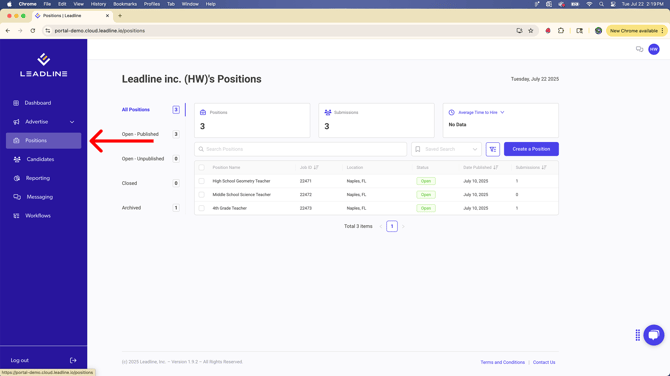
- Navigate to the Positions Page
- Click 'Create a Position'
- Click 'Create New'
- Input the required fields (Position Name, Workflow, Location, Employer Name and any required position tags)
- Click 'Ask Rover'
By clicking 'Ask Rover', Rover will generate a job description, competitive salary, job requirements and benefits for the position.
Note: Salary ranges are determined using industry data from sources such as Glassdoor, Indeed, and Salary.com. Rover analyzes comparable roles in your target location to generate a competitive salary recommendation.
Note: Benefits generated by Rover are generated from whatever benefits are listed in the Benefits section of the Admin Hub.
Note: With any AI generated content, we recommend proofreading all inputs before publishing positions.
After Rover generates the missing content, you will have successfully created a position. To round off creating your new position, check out our how to create Application Forms article to help create Application Forms for each of your positions!
Creating Positions Manually
Creating positions manually is essentially the same process outlined above, however click 'Next' instead of 'Ask Rover'. Clicking next will create the position for you but without essential information about the position (job description, salary information, requirements, benefits, etc.)
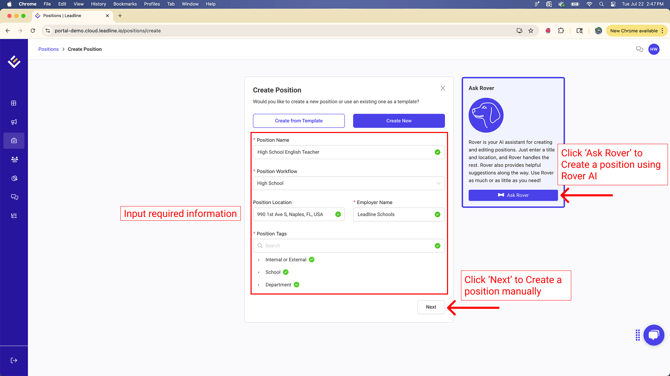
When creating positions manually, you must fill out the required input fields:
- Position Name
- Position Location
- Employer Name
- Job Description
All required fields must be completed before you can publish the position and begin receiving candidate submissions. For detailed instructions, see our article on how to publish positions.
What if I already have a Job Description for a position I want to use?
You can absolutely use the existing job description you have. To accomplish this:
- Create a position manually
- Simply paste the job description into the job description input box
Pro Tip: Rover can also update or simplify your existing job descriptions. Just paste your job description into the input box and click ‘Simplify’—Rover will rewrite it for you. You can also ask Rover to generate different versions using the 'Generate Another' button, helping you choose the most effective description for your candidate audience.
Once you are finished inputting all the information about the position, be sure to configure your Application Form and Channel Tracking Links before publishing the position.