
Task 1: Apply to one of your jobs
Before you start reviewing candidates, you should understand how these candidates get routed to you. The best way to do this is apply to one of the jobs you are assigned. Here's how you can do that:
- Log-in to Leadline
- Navigate to the Positions page, and click on the filter for "Open - Published" positions (more information on Position statuses here)
- Click on a Position to open up the side-drawer.
- Click the 'Actions' button next to a channel of your choosing
- Click the 'Open URL' option. This will launch a new browser tab to the job posting's Landing Page (more information on Pages here)
- Press 'Apply Now' and proceed through the 3-5 minute Apply Experience using a personal email & phone number. Be sure to answer all of the questions, even if you have to upload sample photos or files to use as examples.
Task 2: Review an Application
If you successfully finished task 1, you will probably get an email notification alerting you that someone applied to your job!
Click on the button in this email to start the application review process. Alternatively, you can log-in to Leadline, click on the Position you applied to (open up the side-drawer), and click the 'View Submissions' button to proceed to the Submissions Board.
When you find your submission, take note of each of the 'buckets' or hiring stages. Use these stages to track where each candidate is within the process.
Click on a card to load the submission details for that candidate. You can update the hiring stage by using the buttons, or selecting the hiring stage from the drop-down list. Alternatively, you can drag-n-drop the individual cards into another bucket if you prefer.
Reviewing applications on your mobile device
You can review applications directly from a mobile device - great for on-the-go recruiting! Check out the video below to see an example of this application being reviewed on a phone:
You can log-in on your phone by going to portal.leadline.io/login, or by scanning the below QR code on your phone:

Task 3: Setup an interview with yourself
To interview candidates, you first need to setup your Connected Calendar, which allows the Leadline application to create & send meeting invitations from your Microsoft or Google account.
Once you have successfully connected your calendar, you can use Leadline's interview scheduling features.
Below is a quick video explaining how to setup your Connected Calendar:
To schedule a meeting with a candidate that you like:
- Navigate to the Candidate's profile.
- Click on the button to Schedule a Meeting
- Choose whether you will be scheduling the date/time or if you want to send the candidate a booking link.
- Click the 'Send Meeting Invite' button
Tip: Leadline is flexible to your needs - if you prefer to call candidates to verify their interest/legitimacy and lock-in an availability time over the phone before sending a meeting invite, use the date/time picker instead of the option to schedule through Connected Calendar.
From the candidates point of view, here is what it looks like to receive the message and book time on your calendar. You will notice that Leadline creates an event on your calendar, and shares that event with the candidate who booked the meeting.
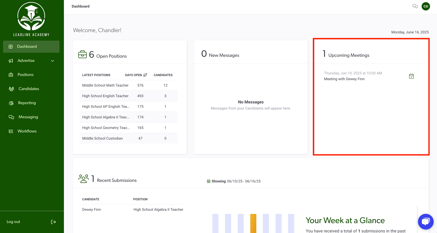
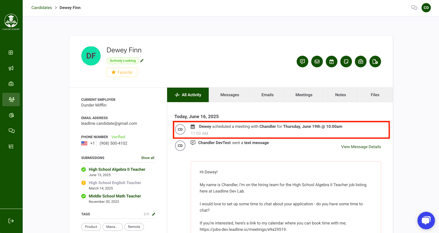
Once a meeting has been scheduled, the meeting will appear on your Dashboard, and will also be displayed on the Activity Log within the Candidate's profile, as shown below:
 .
. 
Task 4: Notify your colleagues when you are done!
When you have finished reviewing an application, you can leave notes on the candidate profile for your HR team. You can send team members an email notification by tagging them in the note by typing "@" + their name.
To add a note:
- Go to the Candidate's profile
- Click on the 'Add a note' button
- Enter your note (use the @ button to send an email notification to that teammate)
- Click Add Note
To complete the training, tag your HR administrator in a note, letting them know your thoughts about the fictitious applicant you just reviewed!
That's it! For more information, please be sure to check out the rest of the Knowledge Hub at docs.getleadline.com