
As your positions are distributed amongst your advertising channels, candidates will begin to submit application form responses to apply to your positions. To learn more about creating positions and configuring application forms and publishing positions, visit the following articles for more:
- How do I Create a Position?
- What are Application Forms and How do I Use Them?
- How do I Publish a Position?
This article outlines how to manage submissions within positions and some tips for best efficiency.
What are Submissions?
Submissions are formal applications completed by candidates who wish to be considered for your published positions. Each submission can include personal details, professional experience, responses to any custom application questions, and supporting documents required for the role. These submissions provide your hiring team with the essential information needed to assess, communicate with, and advance candidates throughout the recruitment process.
When candidates apply to your positions, each submission is automatically organized and stored within the corresponding position. This centralized storage allows your team to easily review, evaluate, and manage all candidate submissions for a given role from a single location, streamlining the hiring workflow and ensuring no application is overlooked.
How to Review Candidate Submissions (Desktop)
To view candidate submissions,
- Navigate to the Positions Tab
- Click on a Position from the List
- Click the 'X Submission (X Completed)' link from within the drawer
Note: Your access to positions is determined by your permission settings. Unless you are a Company Administrator, you will only have access to positions assigned to you or relevant to your responsibilities. Position visibility is managed through workflows. For more details, please refer to our Workflows article.
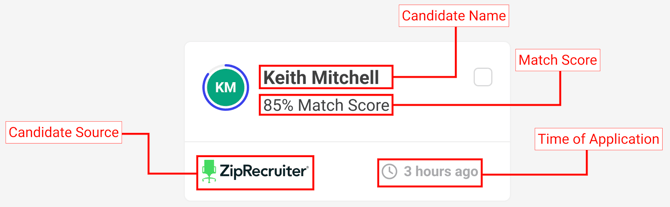
By default, you will see a Kanban view of submission cards containing the following:
- Candidate Name
- Candidate Match Score
- Candidate Source (Which Channel Tracking Link they applied from)
- When the Candidate Applied to the Position
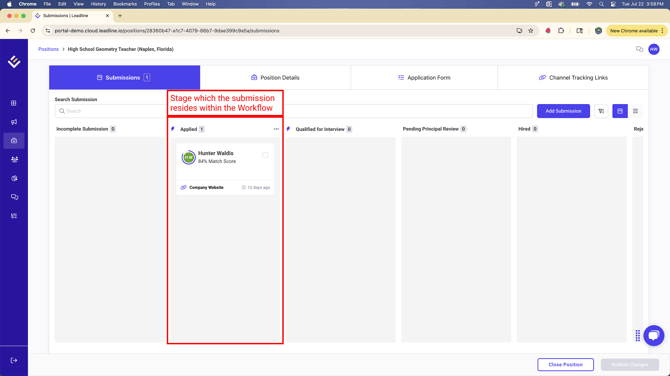
These submission cards are organized into swim lanes or 'stages' within a process. These stages and process are defined within the positions assigned workflow.
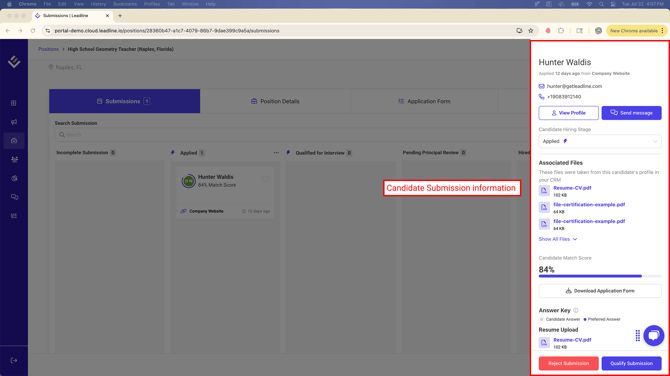
To review a candidates application form responses, click on a submission card to begin. After clicking the submission card, a drawer should appear displaying the following:
- Candidate Information (Phone, Email, Where and When they applied to the position)
- Current Hiring Stage they are in
- Associated Files (Files the candidate has submitted when applying to other positions within your organization)
- Application Form Responses
Pro-Tip: Before reviewing a submission, click the 'View Profile' button. The candidate profile provides a full history of their activity with your organization, including any previous applications to other positions. Reviewing this information helps you recognize returning candidates and personalize your communications, ensuring a more informed and consistent candidate experience.
You can access and review candidate submissions in any stage of your hiring process at any time. If you want to focus on new applications, these will be located in the stage immediately following 'Incomplete Submission' in the Kanban view. This allows you to quickly identify and address newly completed submissions as you manage your candidate pipeline.
What is the 'Incomplete Submission' stage?
The 'Incomplete Submission' stage is designated for candidates who start the application process but do not complete or submit their responses. When a candidate provides their contact information and consent to receive communications, a submission is automatically created for them in this stage, even if they do not finish the rest of the application form.
- Candidates can return at any time and, by using the same email or phone number, submit a completed application for the position.
- If your permissions allow, you can complete and submit application forms on behalf of candidates.
Once the application form is fully completed and submitted, the candidate’s submission is automatically advanced to the first stage of the workflow.
If you prefer, you can also review candidate submissions in a traditional list/table view by clicking the list icon located directly to the right of the filters button.
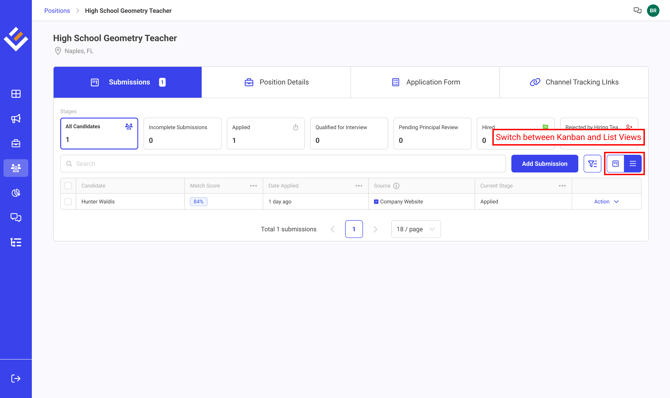
When viewing submissions in the list view, all workflow stages are displayed above the table. Each stage shows the total number of candidate submissions it contains. To filter and view only the submissions in a specific stage, simply click on a stage card.
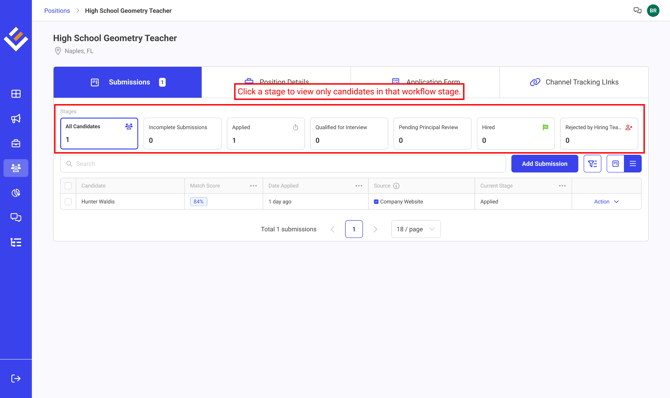
Pro-Tip: The fastest and easiest way to view new submissions for positions is
- Navigate to the Positions tab
- Select a Position
- Change the view from 'Kanban' to 'List View'
- Above the table, click on the stage card directly after the 'Incomplete Submissions' card to display only new submissions
This will display only the new submissions for the selected position.
How to Review Candidate Submissions (Mobile)
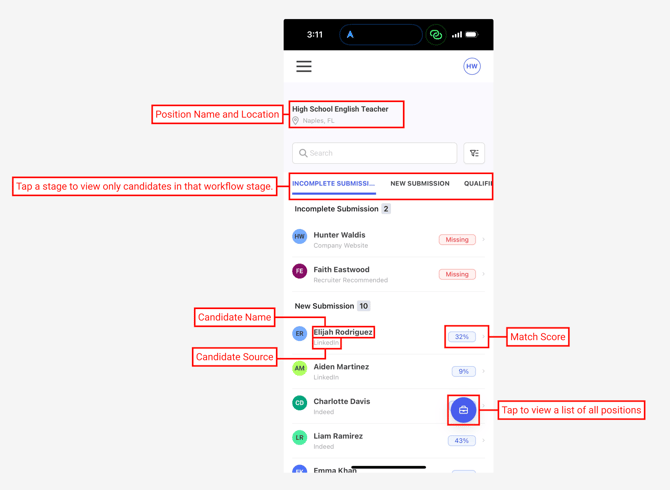
You can also review new candidates who apply to positions via your mobile device as well. To review submissions on your mobile device
- Navigate to https://portal.leadline.io/login on your mobile device
- A list of positions accessible to you will be displayed automatically
- Tap a position to view submissions within the submission
- Tap on a submission to view candidate responses
Note: On mobile devices, there is a single view for reviewing submissions. To see only new candidates, tap the tab immediately following the 'Incomplete Submission' tab in the navigation menu. This will scroll the list to show only candidates in that stage.
Note: If a stage has no submissions, it will not appear in the user interface. We are actively working to update this, so you’ll be notified when a stage is empty when viewing submissions on a mobile device.
What do I do after I review a candidate?
Once you are done reviewing a candidate, you can make the decision to progress them to the next stage in the workflow, or reject them. There are a few ways to accomplish this:
- (Kanban View Only) Dragging and dropping a submission card into a new stage
- Using the progress/reject buttons when reviewing a candidate submission
- Updating the candidate hiring stage using the select menu when reviewing a candidate submission
- Using the 'Change Hiring Stage' button within the bulk actions bar
Dragging and dropping a submission card into a new stage
To move a candidate into a new stage within the workflow, you can simply click, drag and drop the submission card into a new stage. You can move multiple submissions at once if they are selected using the checkboxes at the top right of the submission card.
Using the Progress/Reject buttons when reviewing a candidate
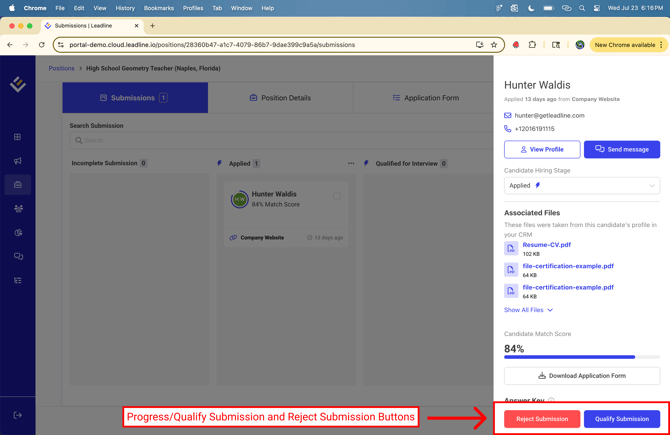
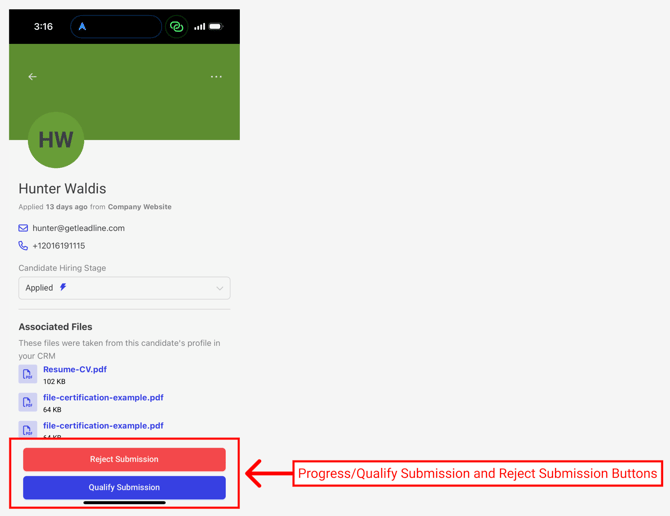
You will notice on both desktop and mobile devices, at the bottom of every submission drawer are a progress/qualify button and a reject button.
- Progress/Qualify button - tap or click this button to progress the candidate submission into the next stage within the workflow
- Reject Submission button - rap or click this button to quickly reject a candidate from the position. A disposition reason is required before completing this action
Updating the candidate hiring stage using the select menu when reviewing a candidate submission
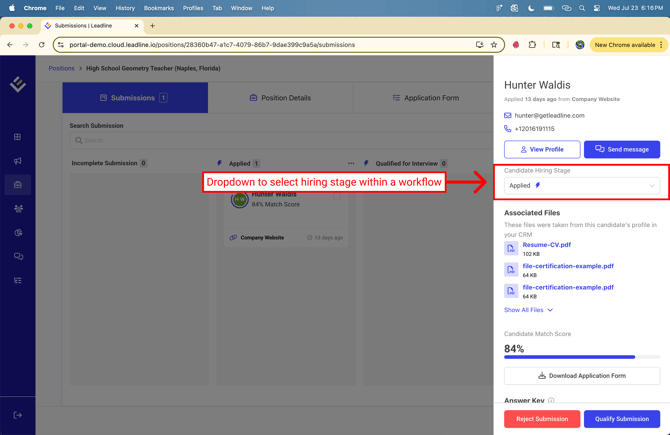
While viewing a submission, you’ll find a dropdown menu below the 'View Profile' and 'Send Message' buttons that allows you to change the candidate’s hiring stage. This dropdown enables you to efficiently move candidates forward in the workflow, especially if they do not need to go through every stage.
- Click on the dropdown to view a list of all stages
- Select the stage you want to progress the submission to
- Click the 'Progress Submission' button to initiate the changes
Using the 'Change Hiring Stage' button within the bulk actions bar
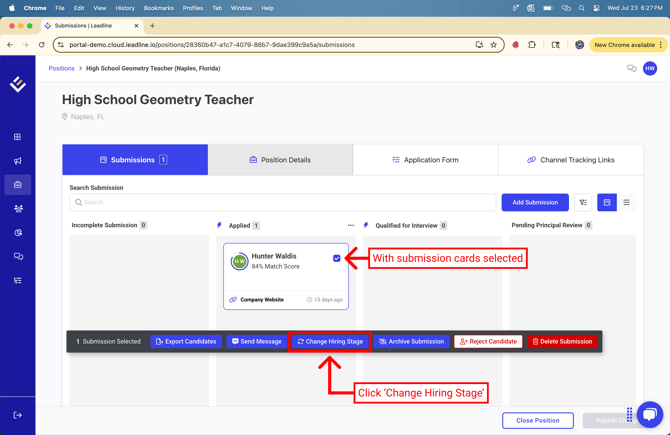
You can also use the bulk actions bar to change the hiring stage of a submission. To do this
- (Kanban) use the checkboxes in the top right of the submission card to select a submission (List View) - use the checkboxes next to the candidate's name
- While the bulk actions bar is displayed, click 'Change Hiring Stage'
- Select a Hiring Stage
- Click 'Ok"
Keep in mind that reviewing new candidate submissions takes place within each individual position. For more information on the candidates listed on the 'Candidates' page, please see our article: What is the Candidates Page?